
This video was voiced using artificial intelligence. Speech distortion may occur.
To import a project from the 3D Constructor program into iFurn.pro, you need to:
Create a product in the 3D Constructor program.
To configure data output, go to the menu “Service” → “Settings” → “XML Output”.
Specify the folder to save the file, select the project format and mark what needs to be transferred to the cutting - "Extruded", "Tabletops", "Profiles".
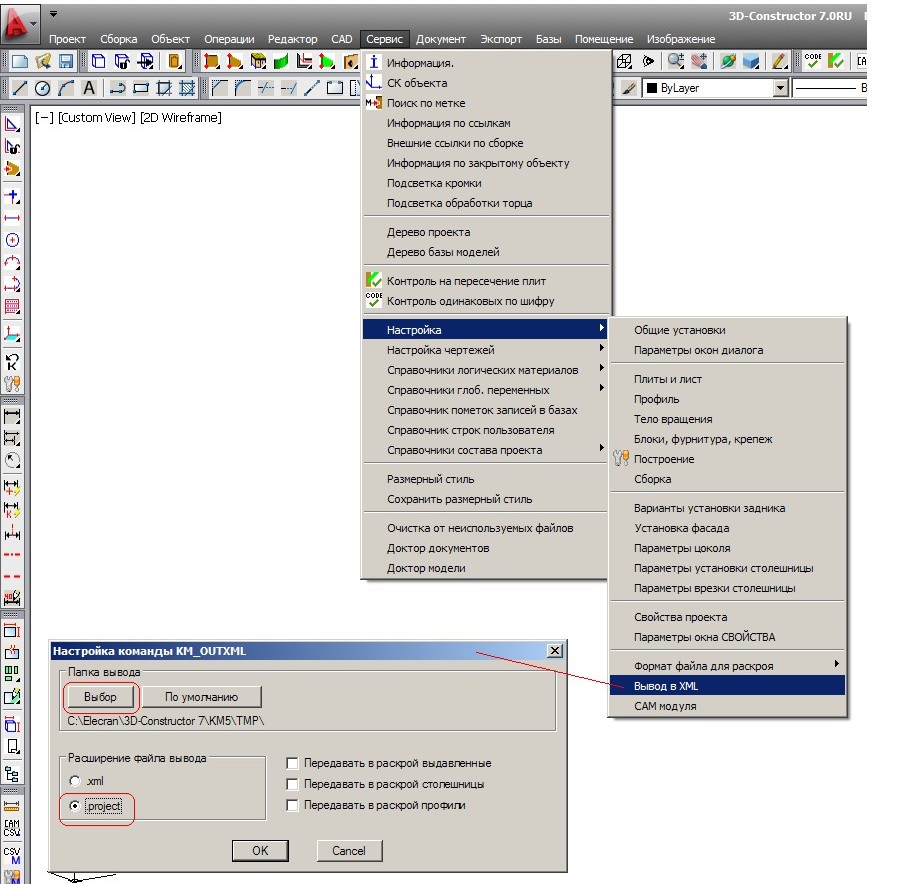
Click the "OK" button to export the project and get a file with the .project extension.
Open this file in Gibberish.
In Ghilab, you must first configure the import parameters from the 3D Constructor.
You need to edit the milling data: for each part with milling, set the value to "Yes" according to the part size.
We save this file with the * project extension.
We upload the resulting project file to iFurn.pro using the import function.