
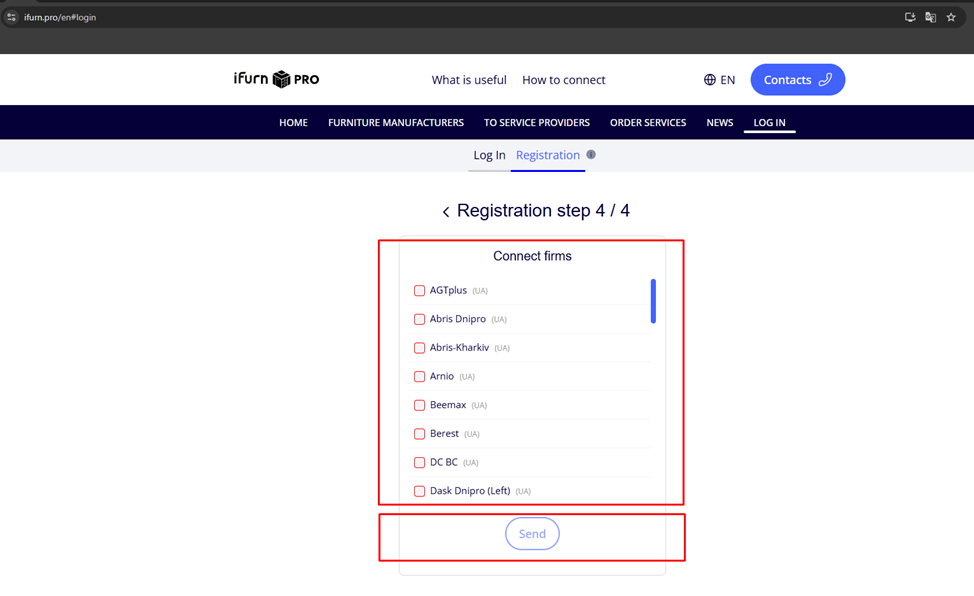
Connecting companies when registering on the iFurn.pro portal :
Fill out the registration form step 4/4:
- Connect businesses to your account by selecting them from the list.
- Click send .
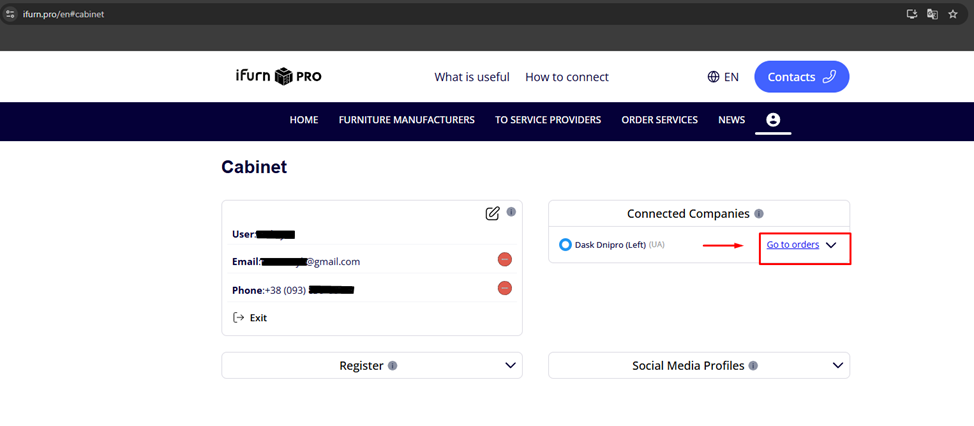
After successful registration and authorization, you will get to your user account .
Work with a connected company
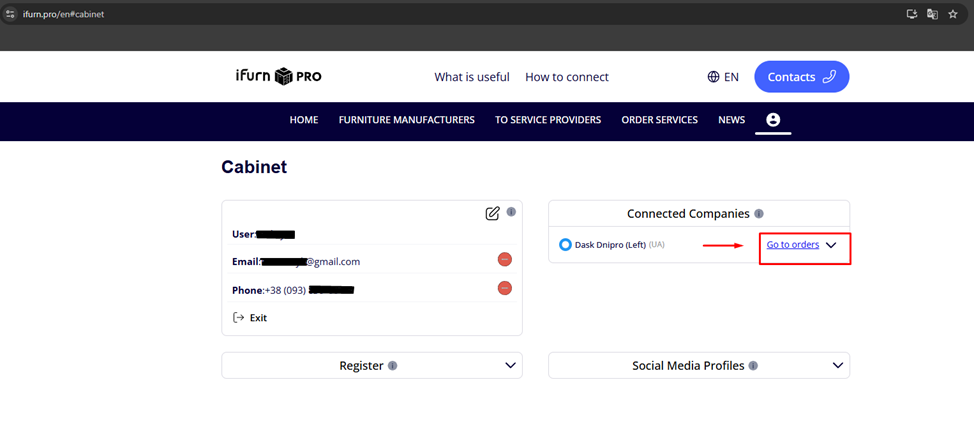
1. In the Connected companies item, the Go to orders button will appear next to the name .
2. Click on it to go to the page for creating and viewing orders that you send to this company.
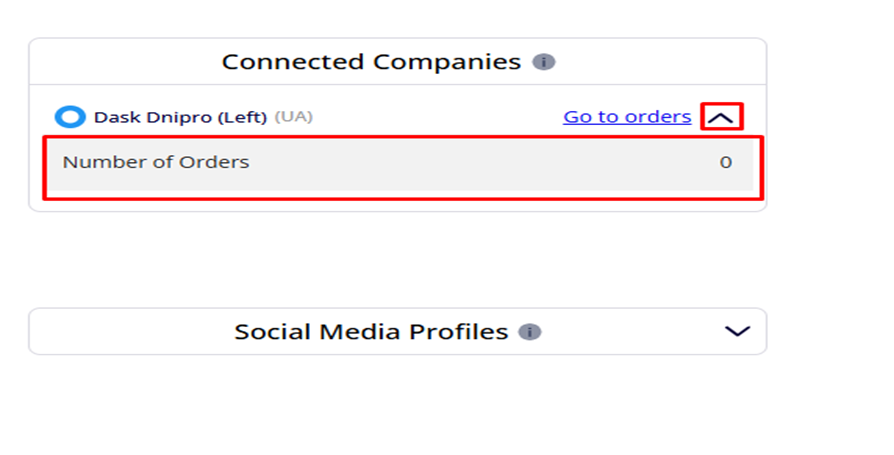
3. The “Go to orders” button also has an arrow ▼ – by clicking on it, you will see the order statuses :
- the number of already created orders;
- the date of the last order.
Note:
- If you have not created an order , the number of orders will be 0 .
Connecting companies after creating an account and logging into the system.
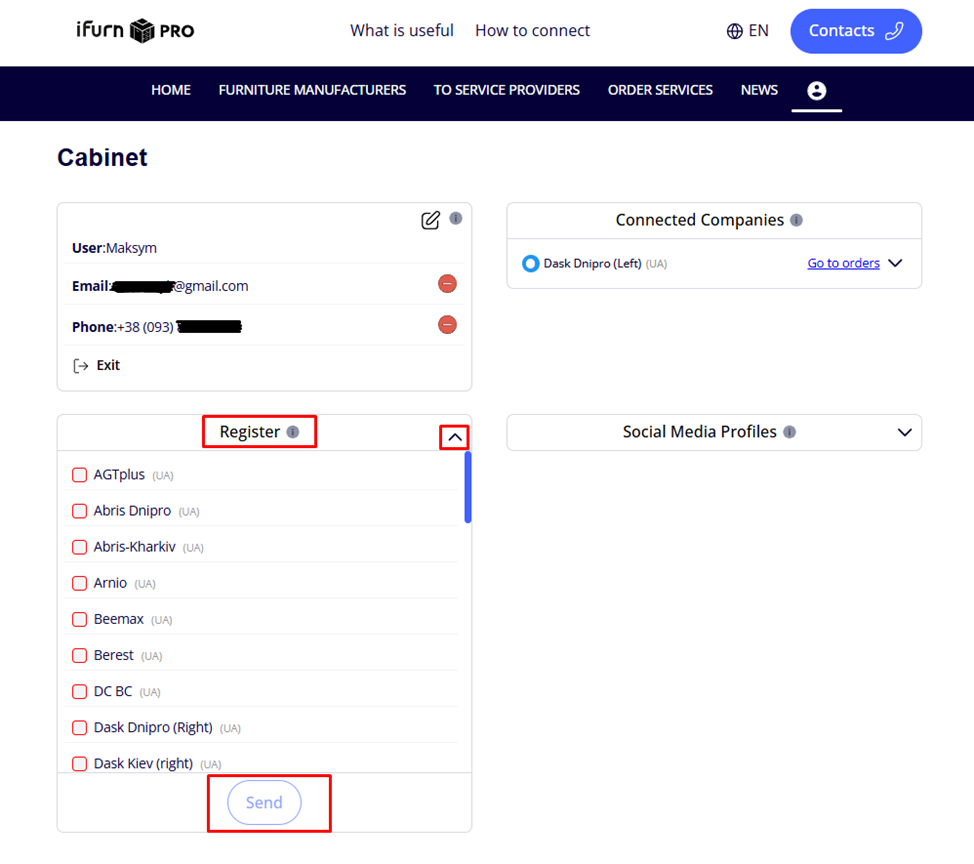
Go to the list of companies
- In your account , under the "Register" item, click the icon in the form of an arrow .
- You will see a list of available companies - these are manufacturers or service companies that work with the iFurn Pro platform.
- Select the desired firms and click the Send button.
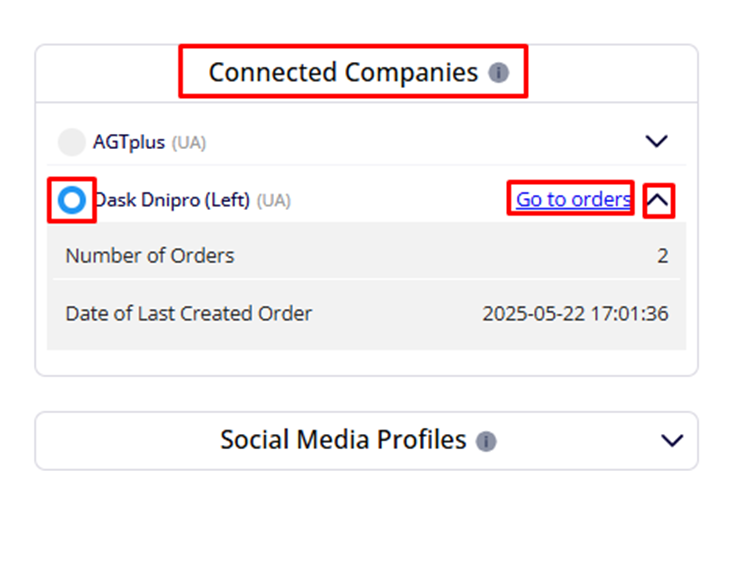
Work with connected companies
1. The companies you added will appear in the "Connected companies" section .
2. To go to the personal account of a specific company, click on the name .
o A blue circle and the Go to orders button are displayed next to the active company .
o Click on it to go to the page for creating and viewing the orders you send to this company.
o The “Go to orders” button also has an arrow ▼ – by clicking on it, you will see the order statuses :
§ the number of already created orders;
§ the date of the last order.
§ If you have not created an order , the number of orders will be 0 .

3. A gray circle and an arrow-shaped button ▼ are displayed next to an inactive company.
4. By clicking on it, order statuses will be available to you:
- the number of already created orders;
- the date of the last order.
- the possibility of withdrawing this company.
Note:
- You can connect multiple companies to one account.
- All connected companies will be available in your personal office where you can switch between them to create orders.
- Functionality and available services may vary depending on the selected company.
While in the account of one company, you can quickly switch to another company by selecting it from the list of connected companies.
Quick transition to the company:
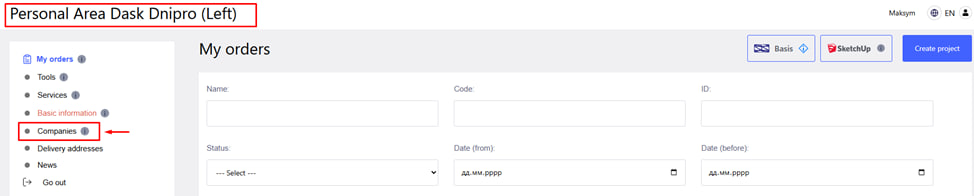
To see a list of all businesses already connected to your account:
- Go to the " Companies " section in the left menu of your personal account .
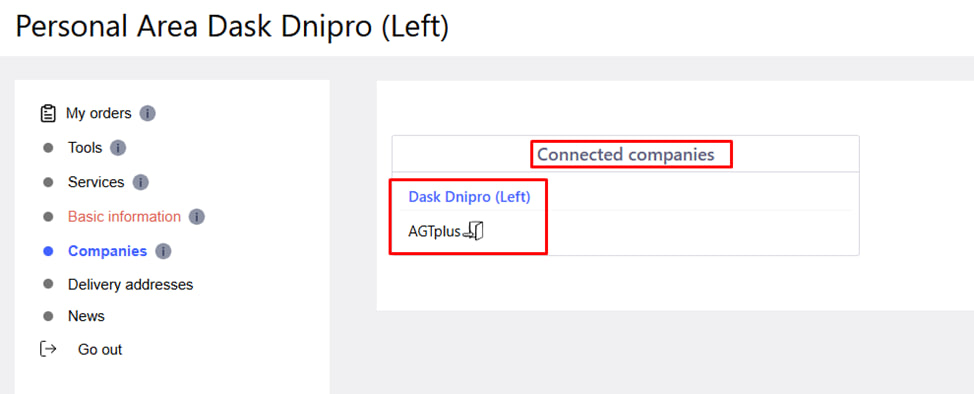
- The block " Connected companies " will appear in the right part of the screen .
- This list will show the names of all the companies you have connected.
Changing the personal account of the company
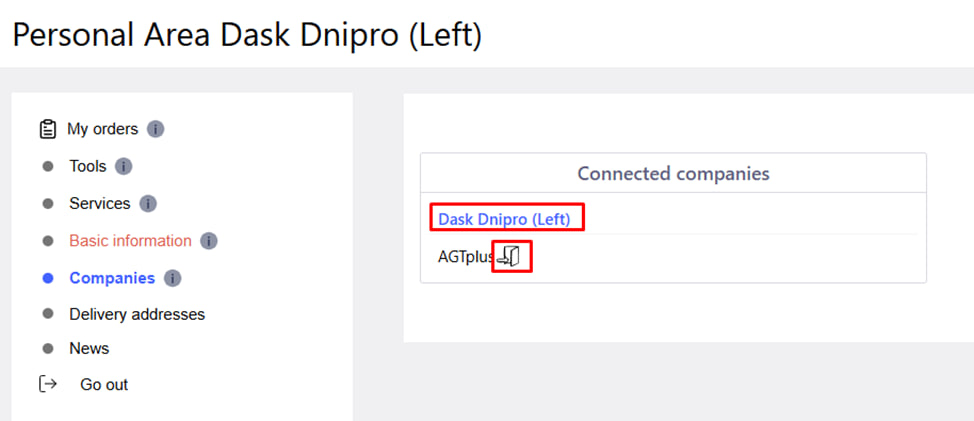
- The active company in whose office you are is highlighted in blue .
- There is an open door icon next to the name of an inactive company .
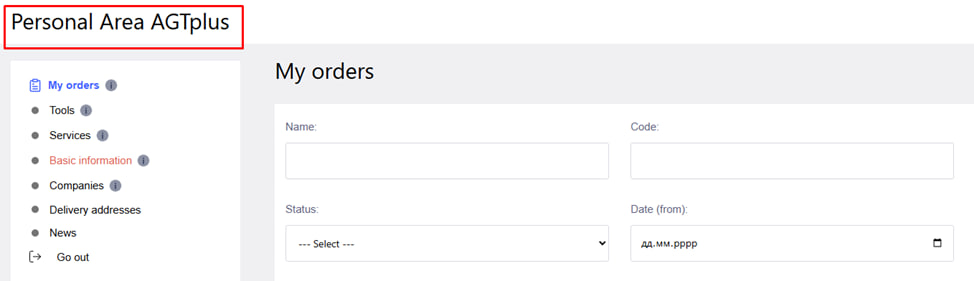
- Click on it to go to that company's work environment - including creating orders, order history, viewing available services, and more.