
Connecting a chatbot (optional but recommended)
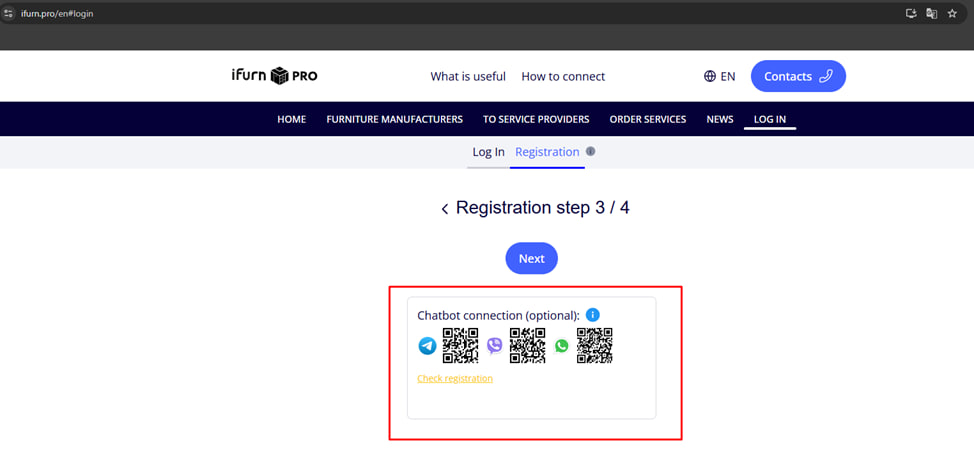
When registering on the iFurn.pro portal, you will be asked to connect a chat bot in a messenger convenient for you - Telegram or Viber .
1. Connecting the chatbot via Telegram – open your smartphone camera or the Telegram application and scan the QR code displayed on the screen during registration.
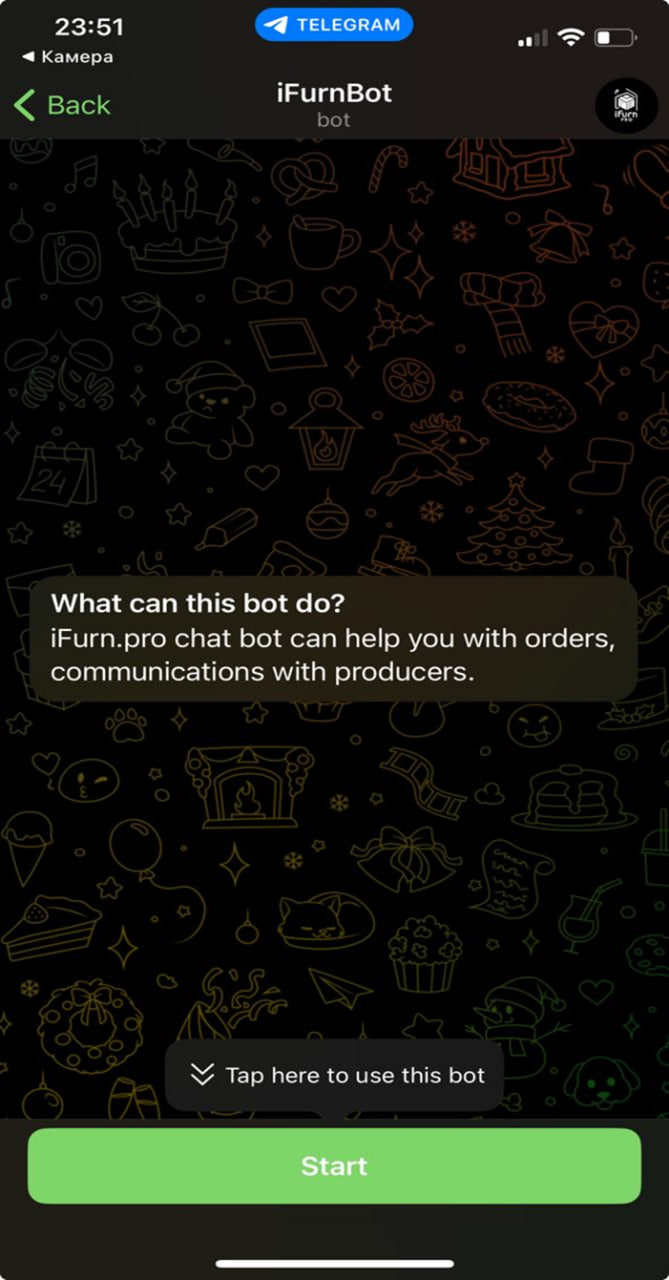
1. After that, click Start in the bot window to activate.
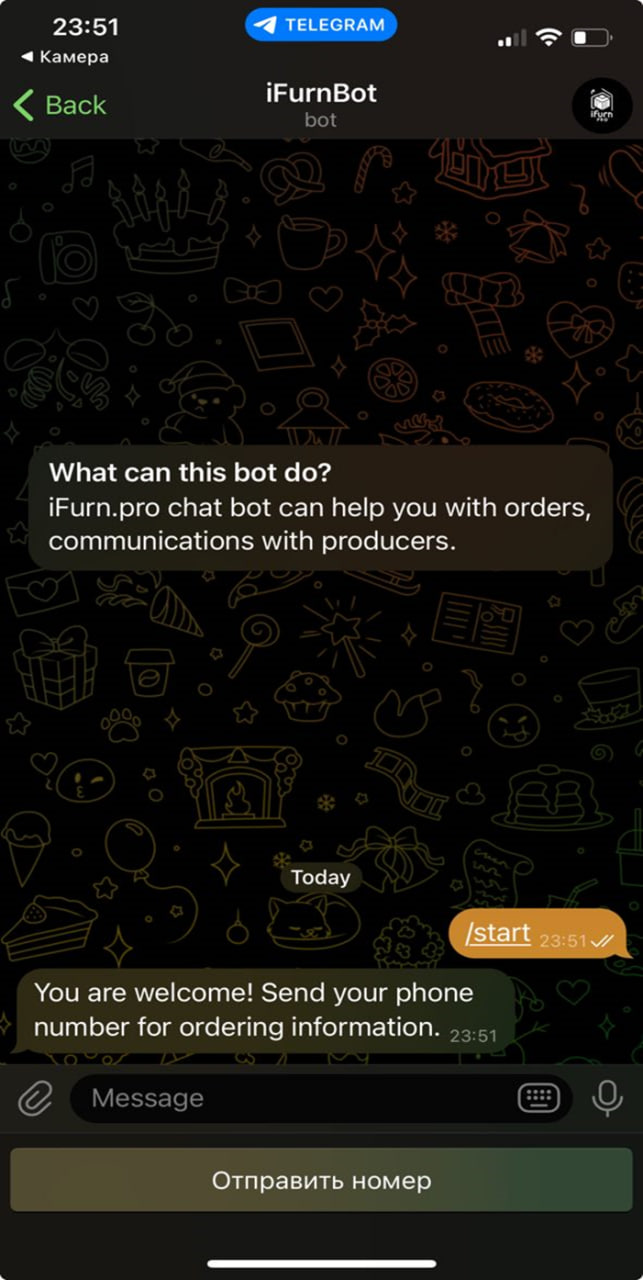
2. Provide your phone number. Note: If you do not click "Send number" , the bot will not be able to identify you and viewing orders will not be available.
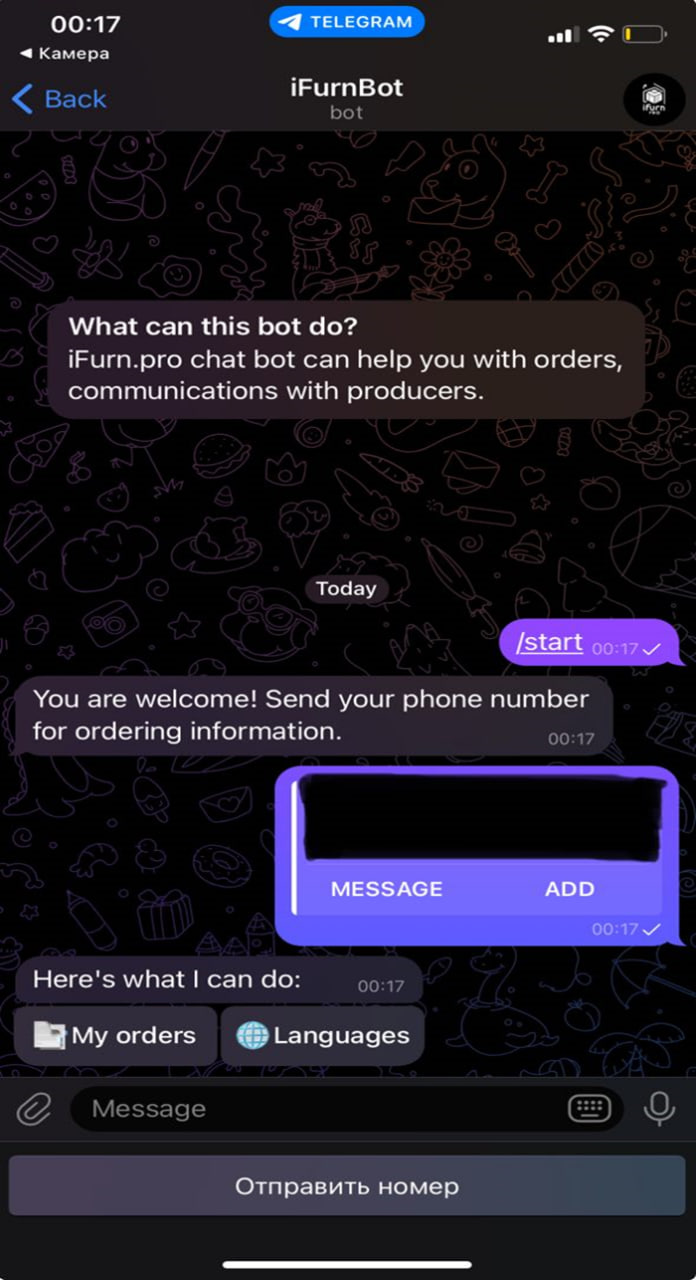
3. Select the desired function :
-
- 📄 My orders – view all your active or completed orders .
- 🌐 Languages – change the interface language.
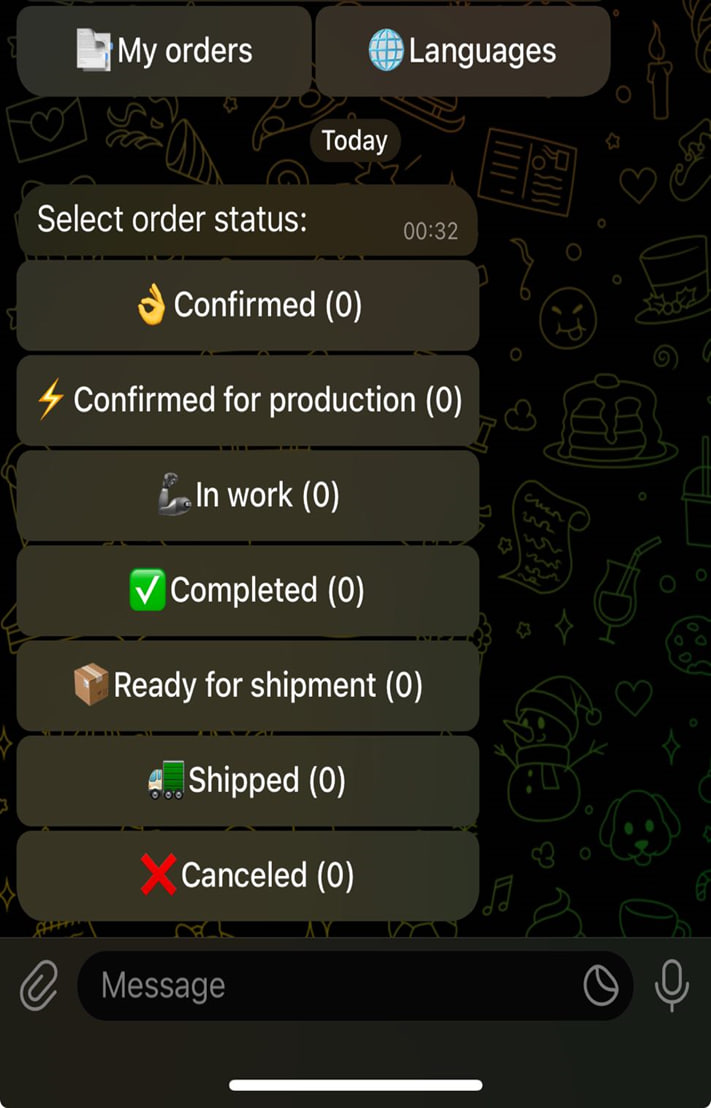
After clicking on the “My orders” function, you will have access to an interactive menu that allows you to:
🔹 View order statuses :
- 👌 Confirmed – the order is confirmed;
- ⚡ Confirmed for production – the order has been transferred to production;
- 💪 In work – the order is being processed;
- ✅ Completed – production is complete;
- 📦 Ready for shipment – the goods are ready for shipment;
- 🚚 Shipped – the order has been shipped;
- ❌ Canceled – the order has been cancelled.
2 . Connecting the chatbot via Viber – open the Viber app, select the "Scan QR code" option, point to the code and confirm adding the bot.
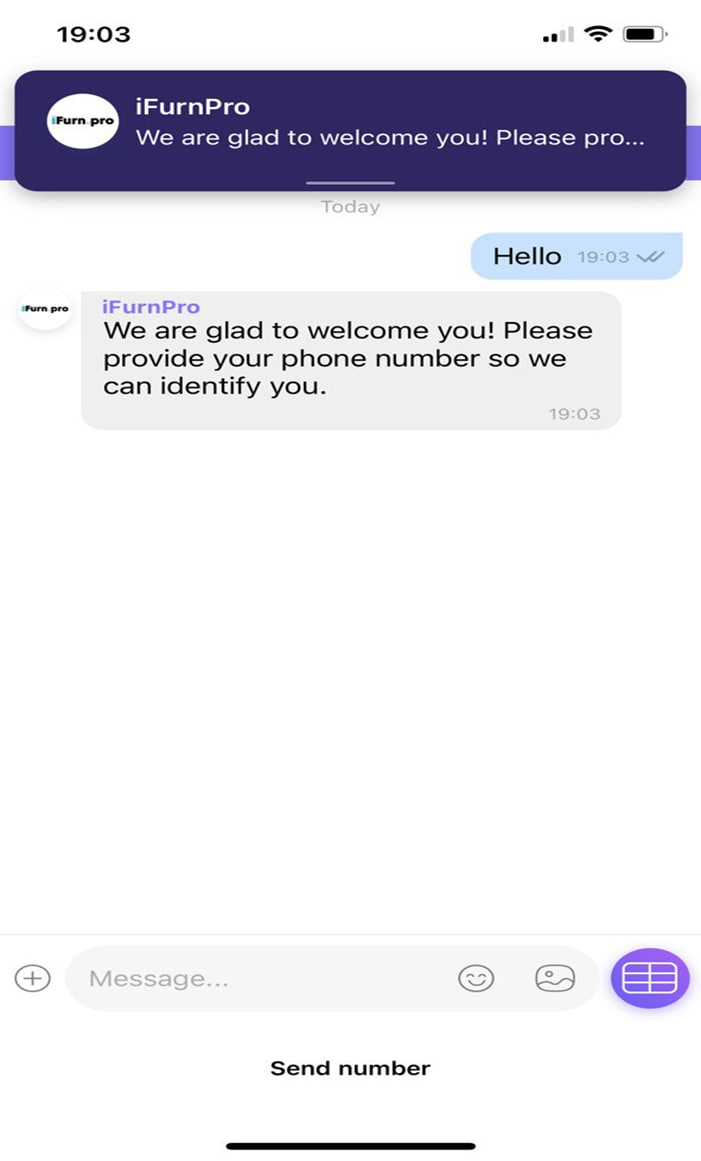
- Open the Viber app.
- Go to the "Scan QR code " section and hover over the code.
- In the dialog box, write a message to start a conversation.
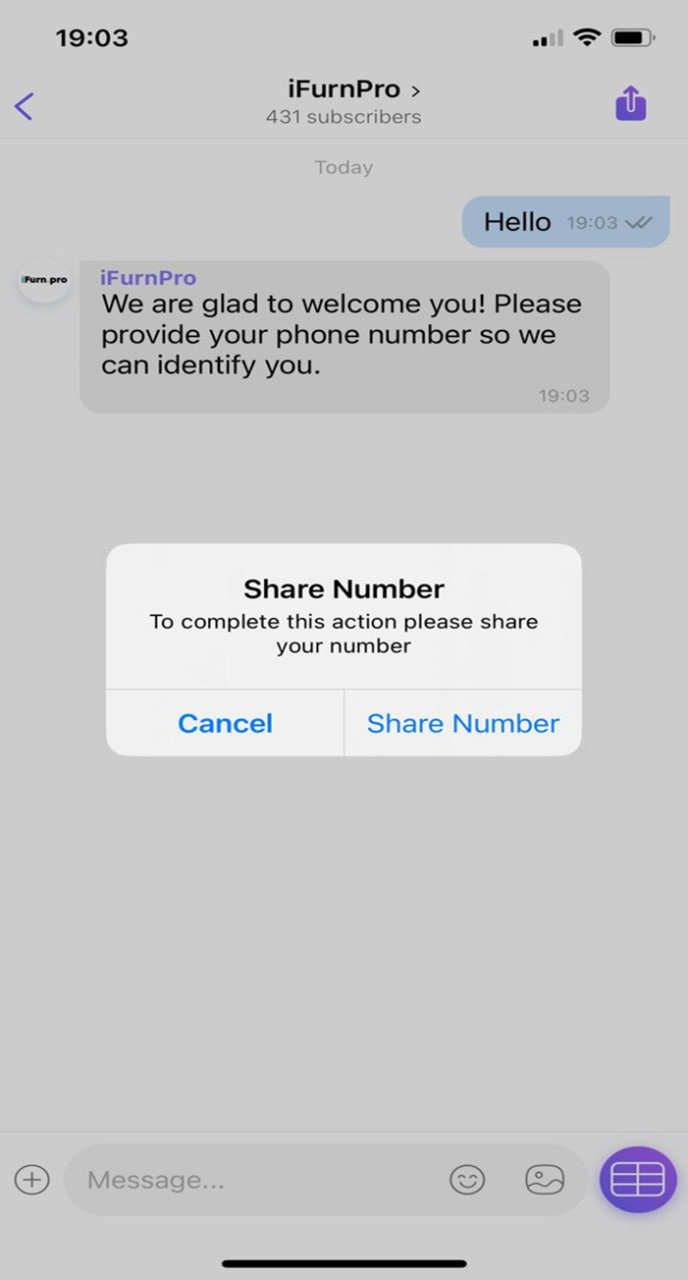
4. To register the number, press the "Send number" button .
5. After that, the bot will send a request to confirm your phone number, accept it .
- Only after this your number will be registered in the chatbot and you will be able to receive notifications about the status of orders .
Note: If you do not click "Send number" , the bot will not be able to identify you and viewing orders will not be available.
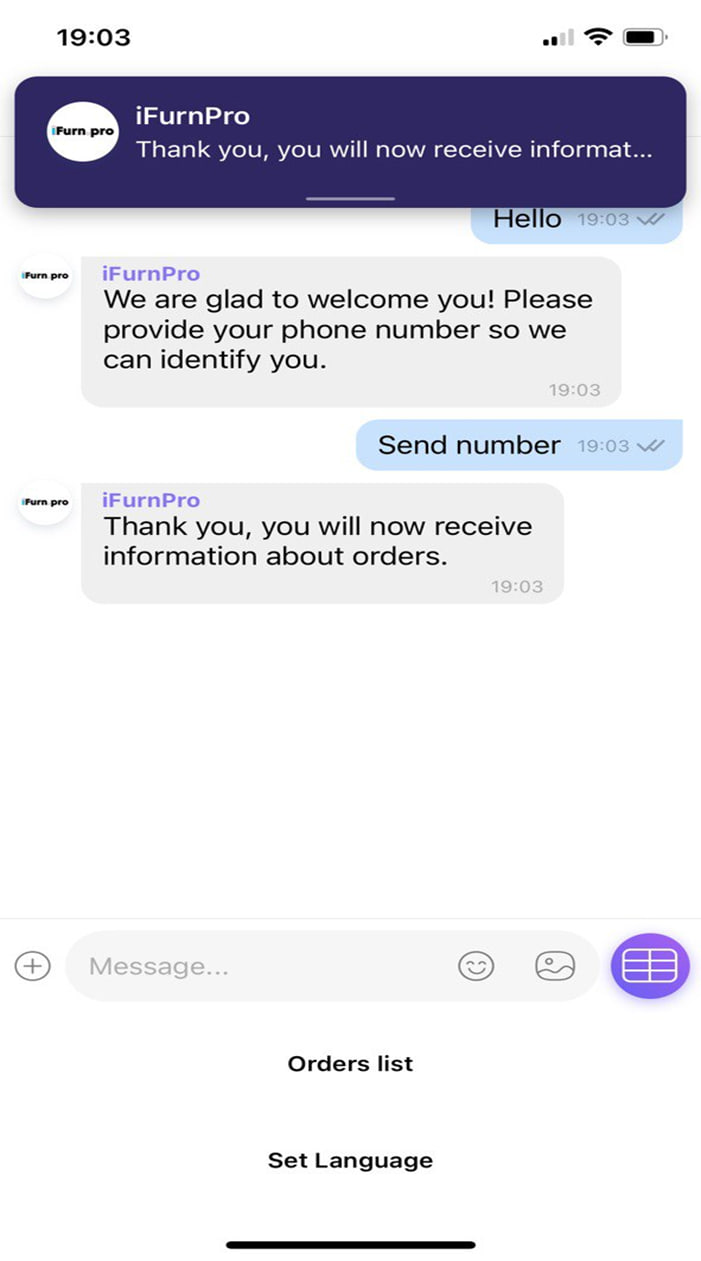
Select the desired function :
- 📄 Orders list – view all your active or completed orders .
- 🌐 Set Language – change the interface language.
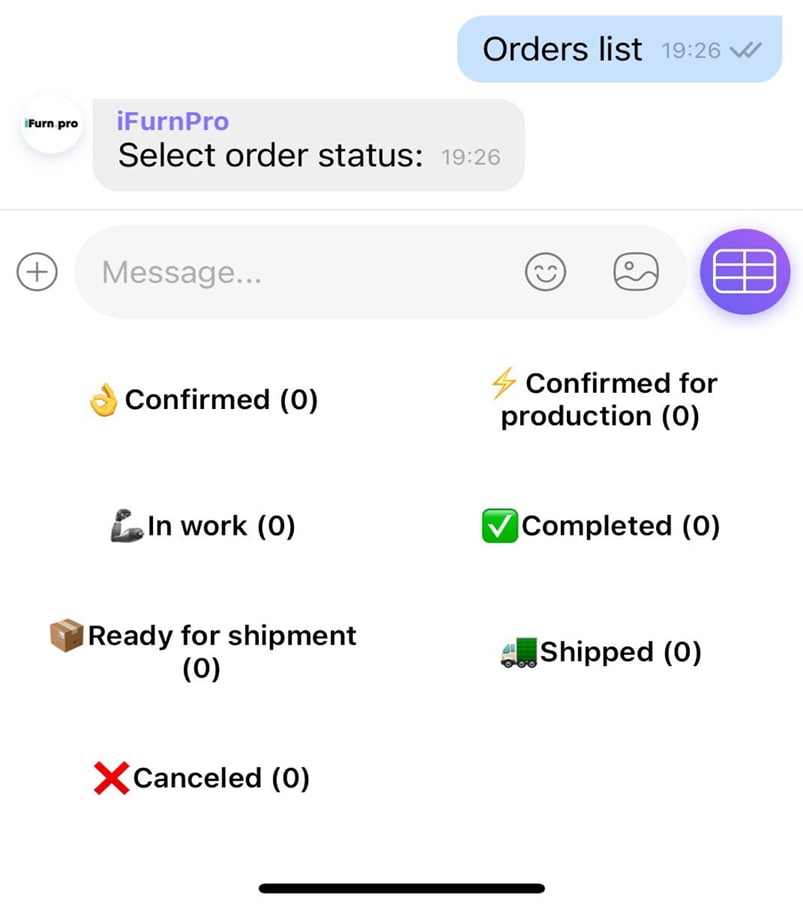
After clicking on the “Orders list” function, you will have access to an interactive menu that allows you to:
View the status of all your orders :
- 👌 Confirmed – the order is confirmed;
- ⚡ Confirmed for production – the order has been transferred to production;
- 💪 In work – the order is being processed;
- ✅ Completed – production is complete;
- 📦 Ready for shipment – the goods are ready for shipment;
- 🚚 Shipped – the order has been shipped;
- ❌ Canceled – the order has been cancelled.
The chatbot functionality allows you to quickly navigate the manufacturing and delivery process without having to log into the main system.
In addition, you can perform authorization directly through the chatbot.