
The download program has the following functions:
- check for new programs on the iFurn.pro server every 10 minutes and download them to your local computer
- sorting by machines, orders, file types
- Monitoring the availability of required programs. If the server doesn't have the required programs, the system will automatically assign a task to the server, and the programs will be generated within 30 minutes at most.
- Automatic removal of programs on the local computer and on those connected to it after completing the order
- Automatic version control of programs on local computers. If programs are outdated and ifurn.pro contains newer ones, the system will update the files .
- Automatic copying with on-the-fly sorting of programs from local storage to machine computers.
- Automatic update. If there's an updated version of the downloader on the ifurn.pro server , the system will automatically update the program locally.
Installation
-
Download the file from the link .
You can run the program on each machine separately, or use a computer as a server. We guarantee that programs will be downloaded to the folder you specify. Synchronization from this folder to the machine folders depends on your local settings. If the teachers have access to the folders , there will be no problems. It's important to remember that many machines lock their working folders to prevent changes while they're running, so synchronization directly to the working folder doesn't always work.
The receiving architecture depends on your infrastructure.
Go to the config .txt file :
1. Enter your API key
2. CHECK_PROGRAMS_URL - fill in this parameter depending on which API you are using .
3. orders_dir_path - the main folder where the files for the machines will be saved.
4. CONVERT_SVG=1. If there is a cut of the KDT, it should be 1, otherwise 0.
After launching the program, simply minimize it and let it “hang” in the console .
In addition to the orders folder, you have created a folder c:\orders_copy
This is a demonstration of how synchronization with machines works.
Go to the synchronize_folders.txt file
C: /orders/ cuting > / tmp / orders_copy /cutting file
C:/orders/giblab_projects > / tmp / orders_copy / giblab_projects folder
Source folder > Destination folder > Copy type
The file copy type means that the original folder structure will not be preserved when copying data. This is important, for example, for Holtzma . All LC 4 files should be saved in the "runs" folder without a structure.
The folder type means copying while preserving the folder structure
Data clearing.
To completely reset the data, you need to do the following:
- close the main.exe program
- delete the folders C : \ orders_copy C : \ orders
- delete 2 files in the program folder ( orders.csv , sync_files.txt )
- run the main.exe program
When running the synchronization program, remember that ALL network folders connected to the program must be accessible. If not, some files will not be copied to the machine.
If this happens, you can copy the data yourself or use the cleaning procedure to get everything back.
If such an error occurs
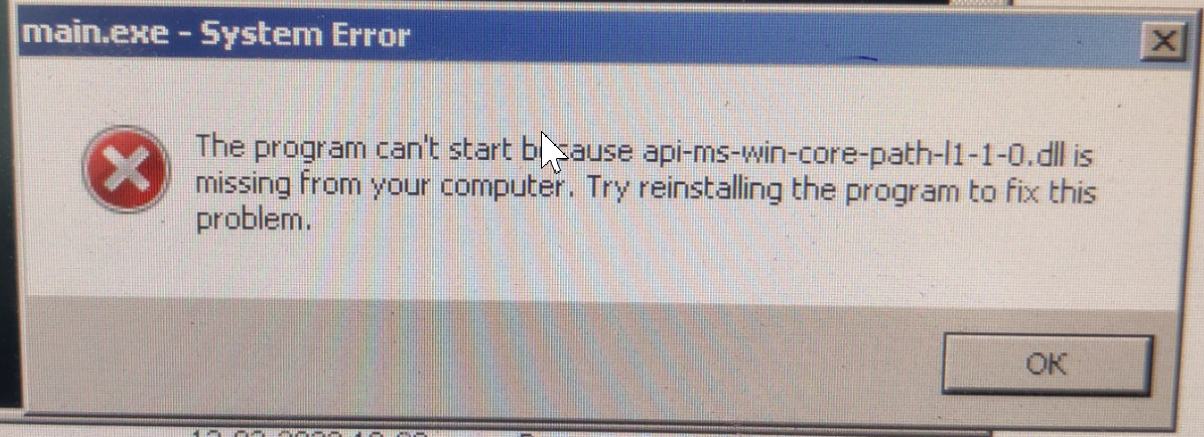
Follow the link and install the required program:
Update.
The program updates itself if a newer version is available on the server. If for some reason the update fails, you can download the program from this link . From the resulting archive, copy the " main " folder and replace the existing folder in the download program directory with it.