

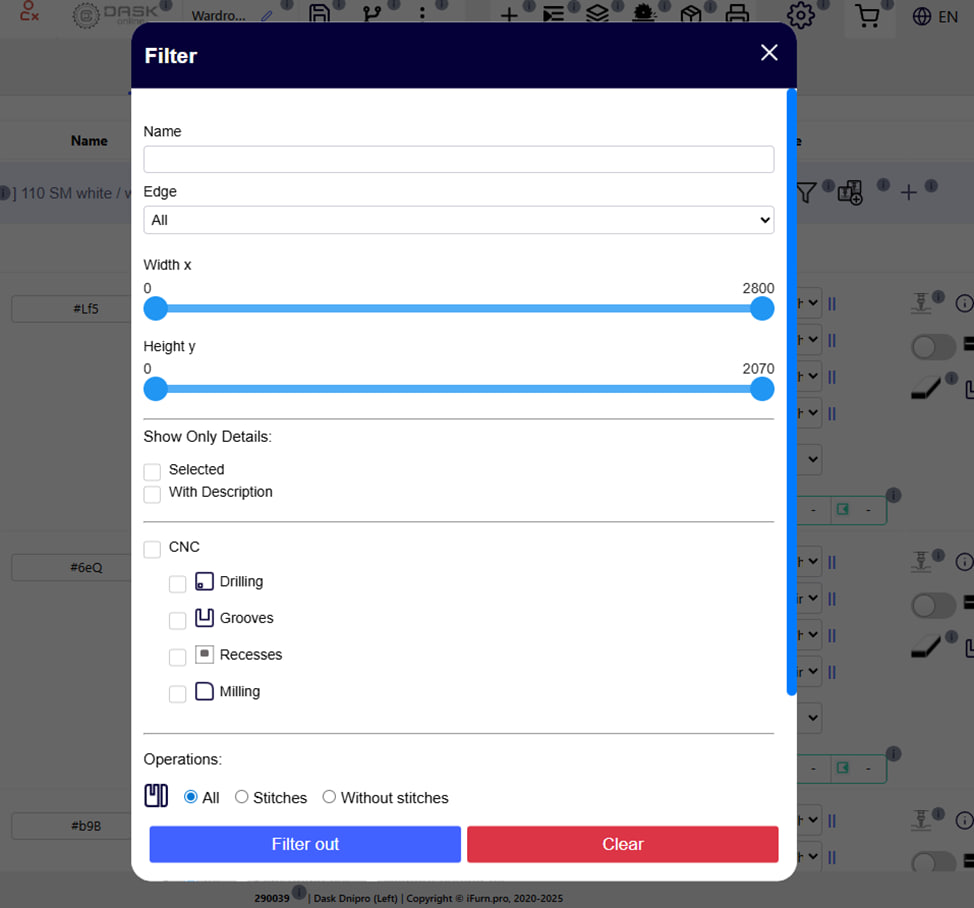
The " Filter " button opens a window where you can select and apply detailed parameters for filtering details in the project. This tool allows you to focus only on the elements you need - for example, parts with a certain type of finish or edge.
Available filtering options:
- Name of the part (Name):
- Enter a part or full name to find a specific item.
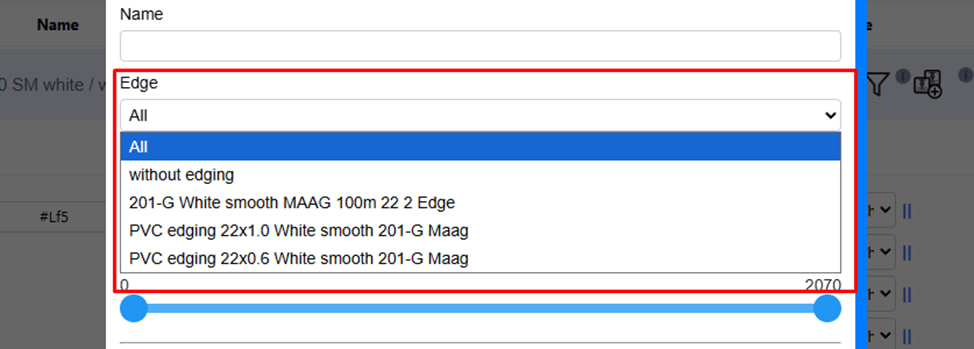
2. Edge :
- Choose the presence or absence of an edge.
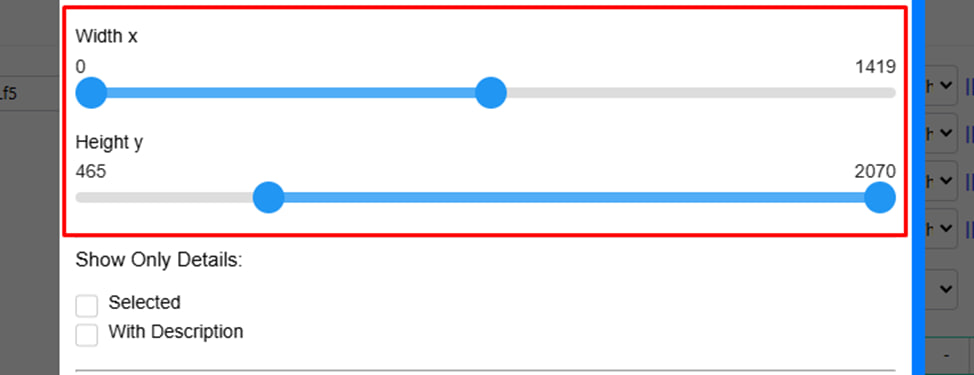
3. Dimensions of the part (Width X, Height Y):
- Use the sliders to limit your search to items within a specified width and height range.
4. Show only details (Show Only Details):
- Selected — show only the details you previously selected.
- With Description — show only details with comments or description.
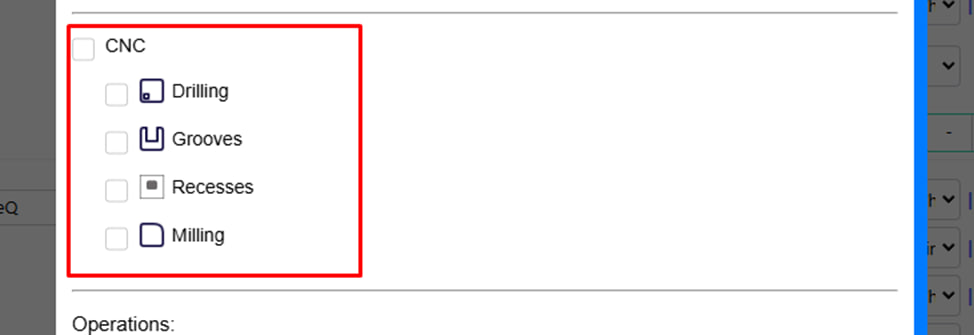
5. CNC processing :
Select the type of operation that is applied to the part:
- Drilling
- Grooves
- Recesses
- Milling
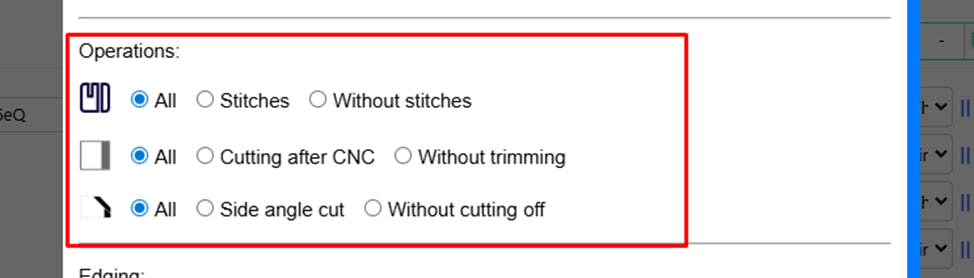
6. Operations :
- Stitches :
-
- All — show all details, regardless of stitching.
- Stitches - only with stitching.
- Without stitches — only without stitching.
2. Cutting (Cutting after CNC):
-
- All — regardless of the presence of clipping.
- Cutting after CNC — show only those with cutting after CNC.
- Without trimming — only without trimming.
3. Side angle cut :
-
- All - all details.
- Side angle cut — only with a side angle cut.
- Without cutting off — without him.
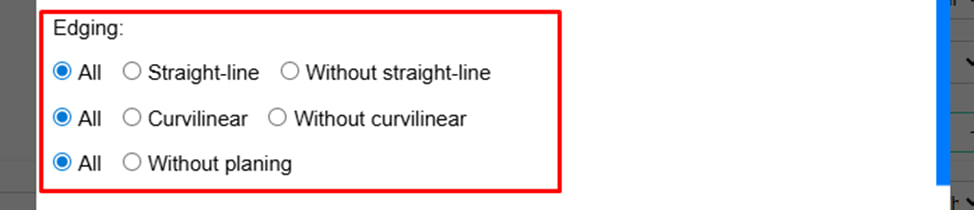
7. Edging . Refine your search by edge type:
- Straight -line:
-
- All - everyone.
- Straight-line — only with a straight line.
- Without straight-line — only without it.
2. Curvilinear :
-
- All - everyone.
- Curvilinear — only with curvilinear.
- Without curvilinear - only without it.
3. Without grouting (Without planing):
-
- All — regardless of the presence of splicing.
- Without planing — only those parts that do not require grouting.
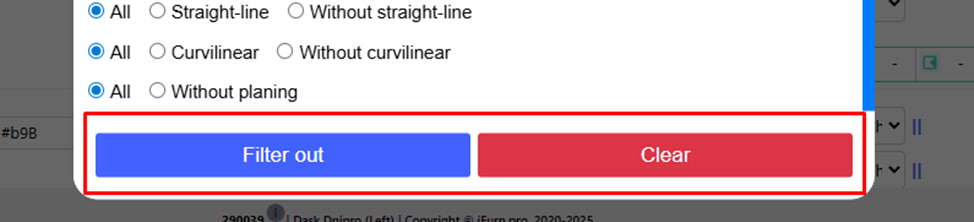
Action buttons :
- Filter out — apply filtering to the parts list.
- Clear — reset all filters and show the entire list.