

To add details manually , click the green plus sign (+) next to the material you added to the project.
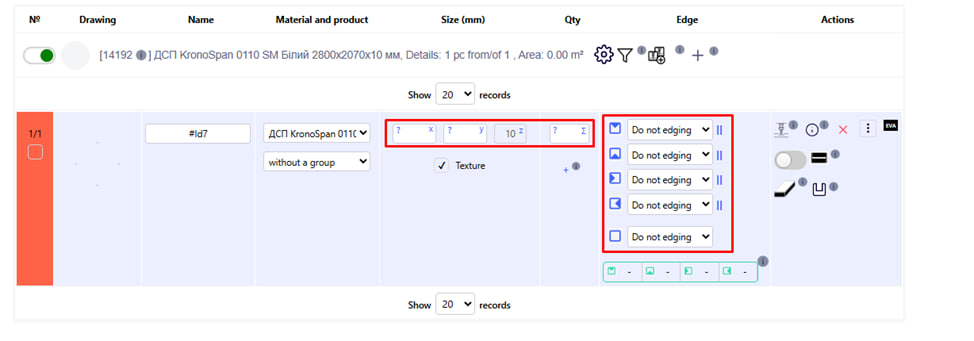
Specify the necessary settings for the part parameters: X size, Y size, quantity, creasing , etc.
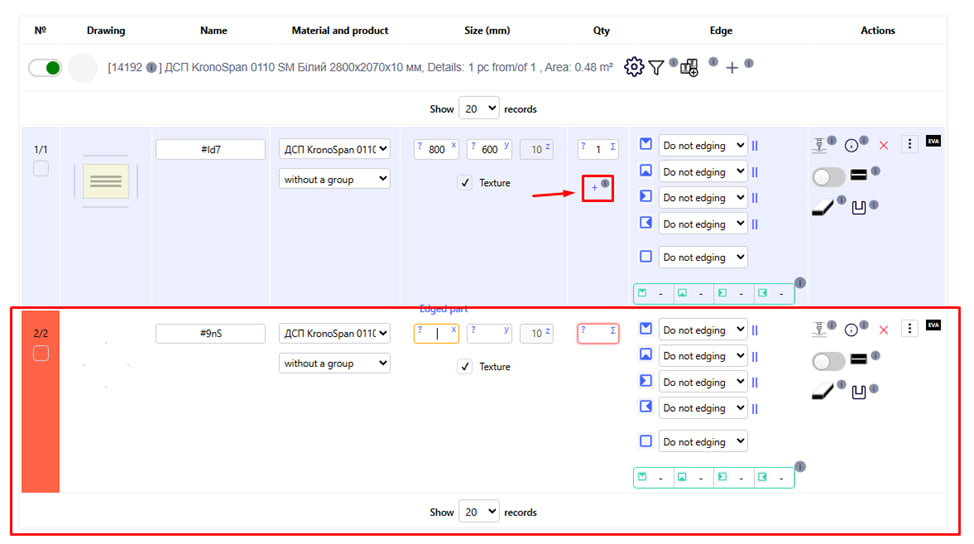
After entering the required dimensions of the part, a small + sign will appear. Click on it if you need to create a new part.
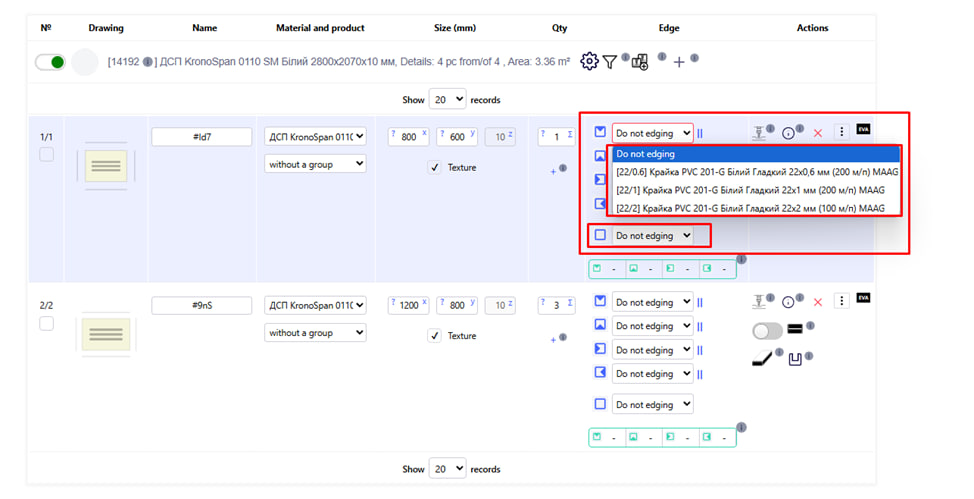
To the right of the part size settings are the creasing settings.
- Choose the desired side of the crease.
- In the drop-down list, select the desired border option.
- There is also an opportunity to choose the creaking from all sides at once.
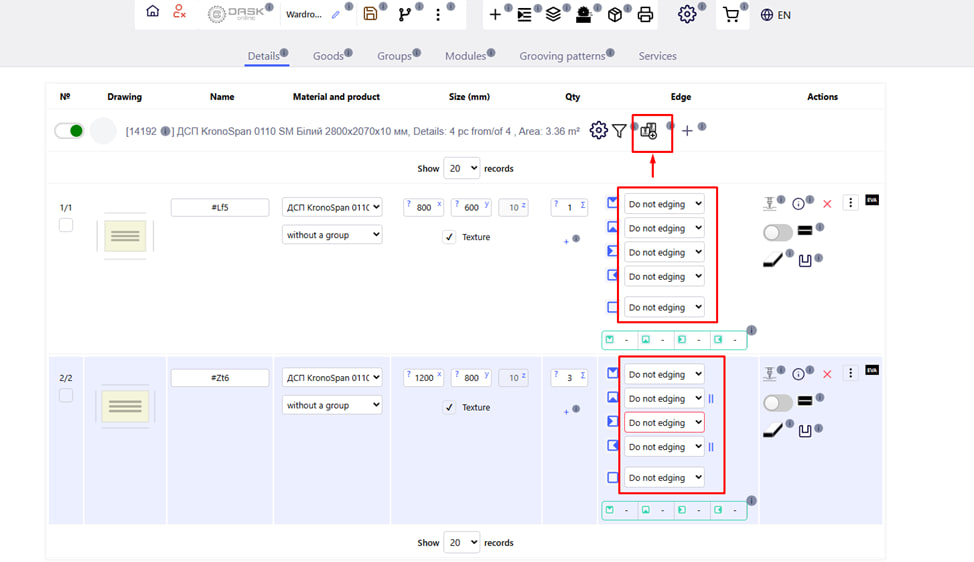
There is also the possibility of group processing of parts. To do this, you need to click on the corresponding button .
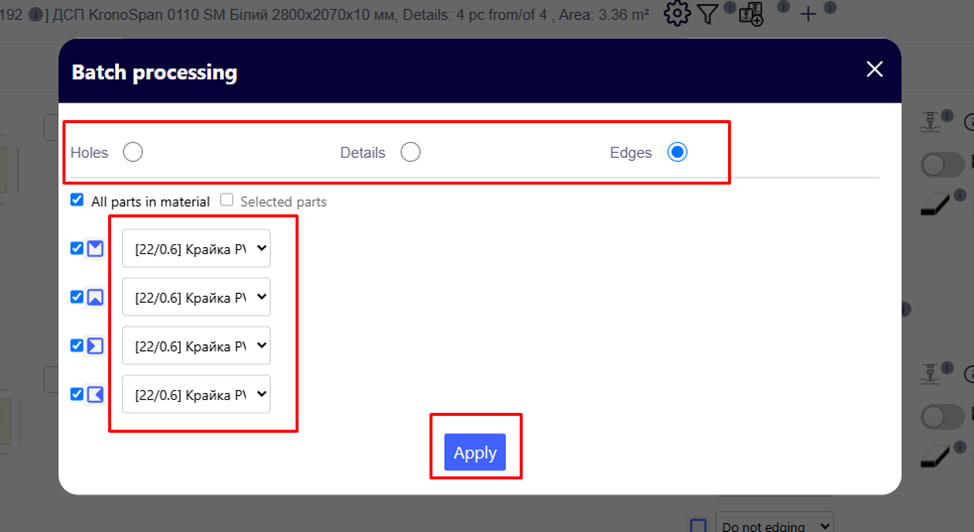
After that, you need to choose the type of group processing, for example, edge . Set the necessary parameters and click the blue Add button.
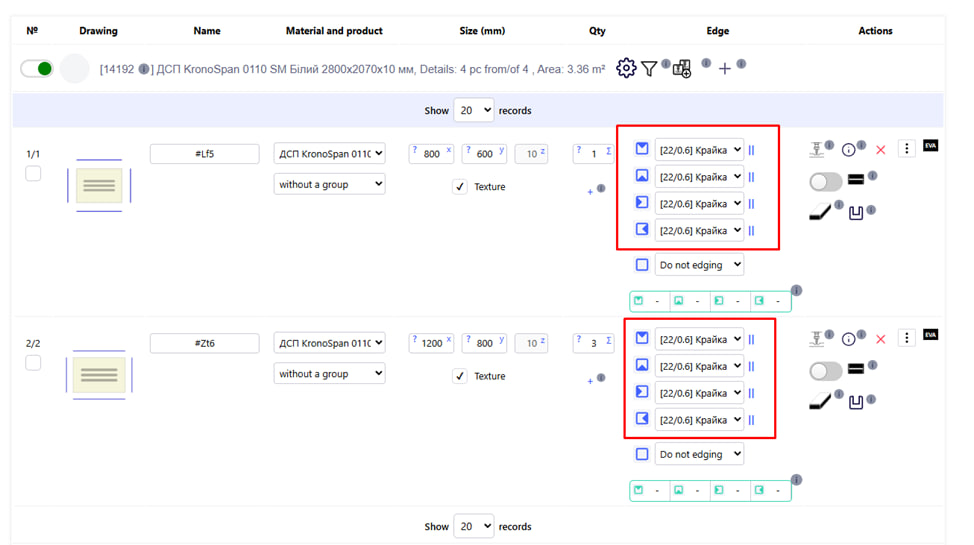
The group processing parameters you apply will be duplicated among all added details in this project.
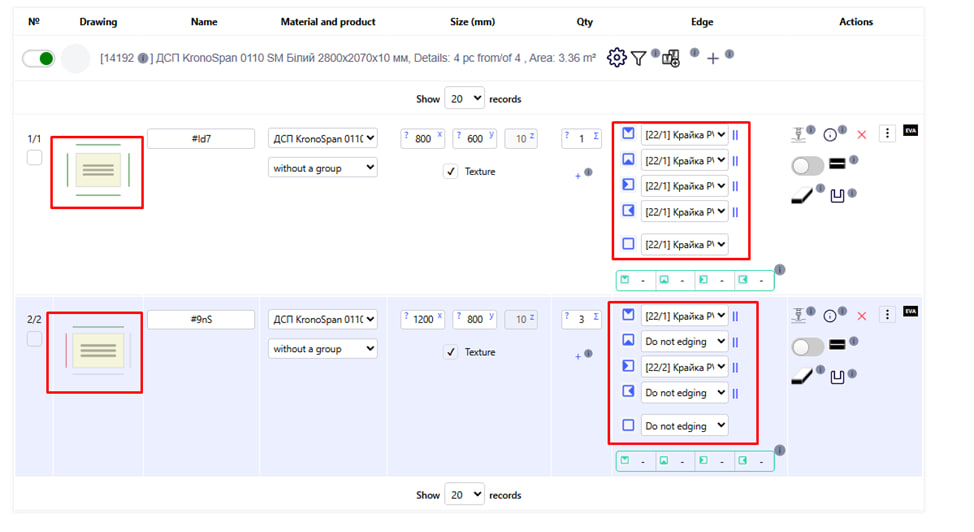
To the left of the part settings, its scheme is displayed, which changes according to the selected edge marking. The scored sides will be marked visually. 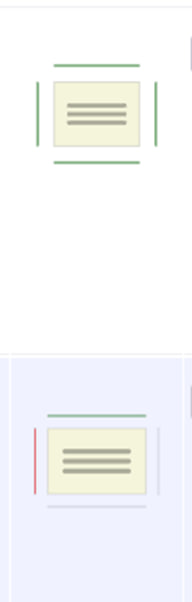
Importantly!
The part diagram also shows the selected edge thickness for each side (the edge thickness is selected during its setup).
- The green line is an edge with a thickness of less than 1.
- The red line is an edge with a thickness of more than 2.
- The blue line is an edge less than 1 mm thick.