
Grooving on 6 sides - Grooves can be placed on any of the six sides.
Select the Spacing tool from the left menu. After that, choose the grooving method :
(in addition, see related articles: Grooving Patterns Tab , Grooving Patterns Button )
1. Create a new one - you set all the parameters yourself . To do this, click on the appropriate option.
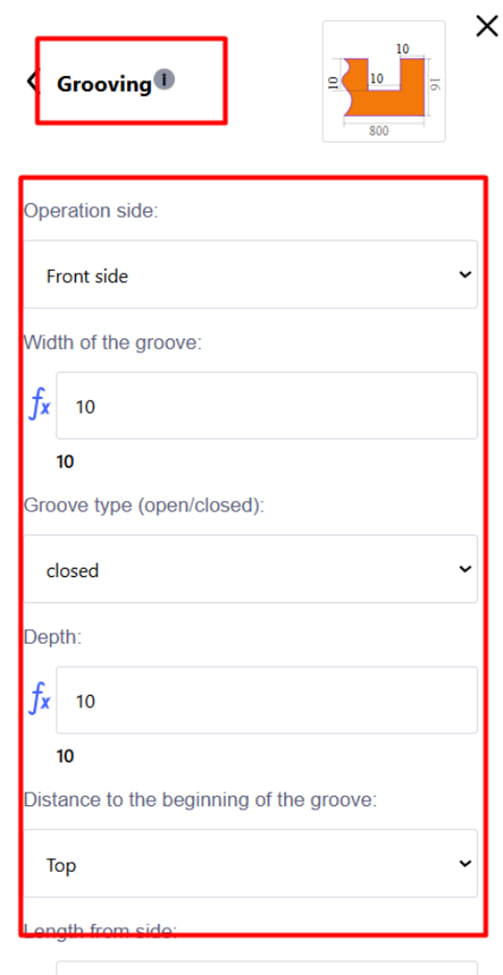
In the menu that appears, set the necessary parameters:
- Party of operation;
- Groove width;
- Groove type – open or closed. Note :
- An open groove is a groove that runs through the edge of a part. It is open on one side and is performed after processing the edge. This type of groove is convenient to use when you need to make a through or partial opening of the material;
- A closed groove is a groove that does not reach the edge of the part. It is performed before processing the edge, since the edge must remain intact. For closed grooves, the system automatically limits the movement of the tool to avoid cutting beyond the desired area.
- Depth;
- Distance to the beginning of the groove;
- etc.
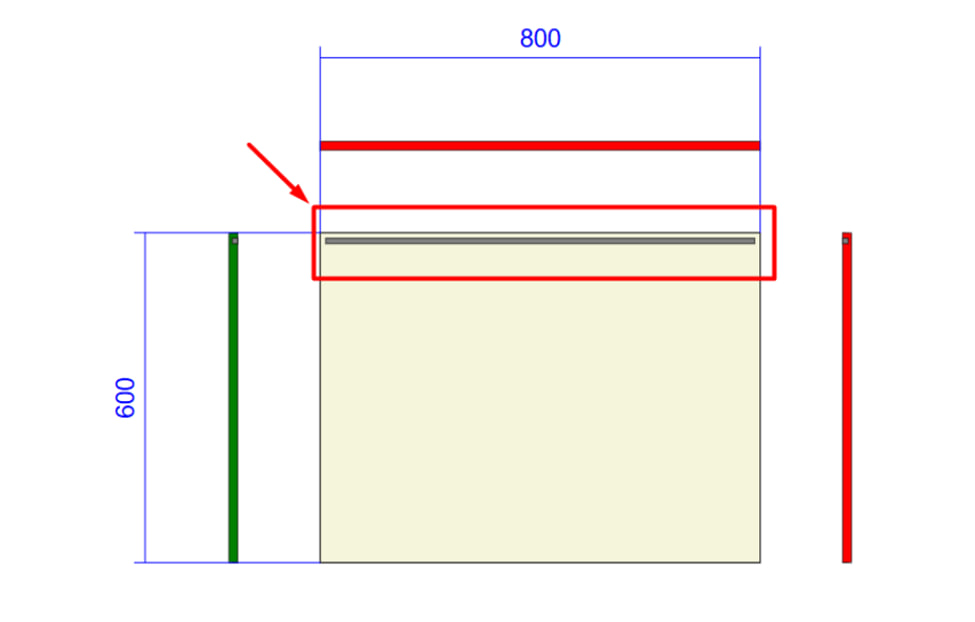
Click the blue " Add " button to confirm the operation. After that, the groove will automatically appear on the part drawing.
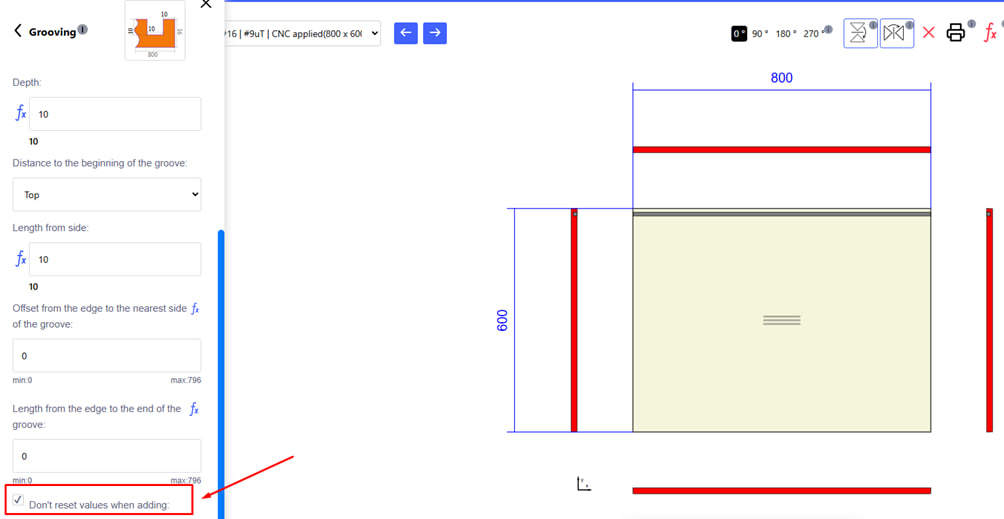
Note :
" Do not reset values when adding " - this option allows you to save all entered values (depth, width, indents, etc.) after adding a groove .
If the check box is checked , the system does not clear the input fields after clicking the Add button. This is convenient when you need to create several grooves with the same parameters - just indicate the new position of the groove in the drawing.
If the check box is unchecked , all parameters are reset and data must be entered again when creating each new slot.
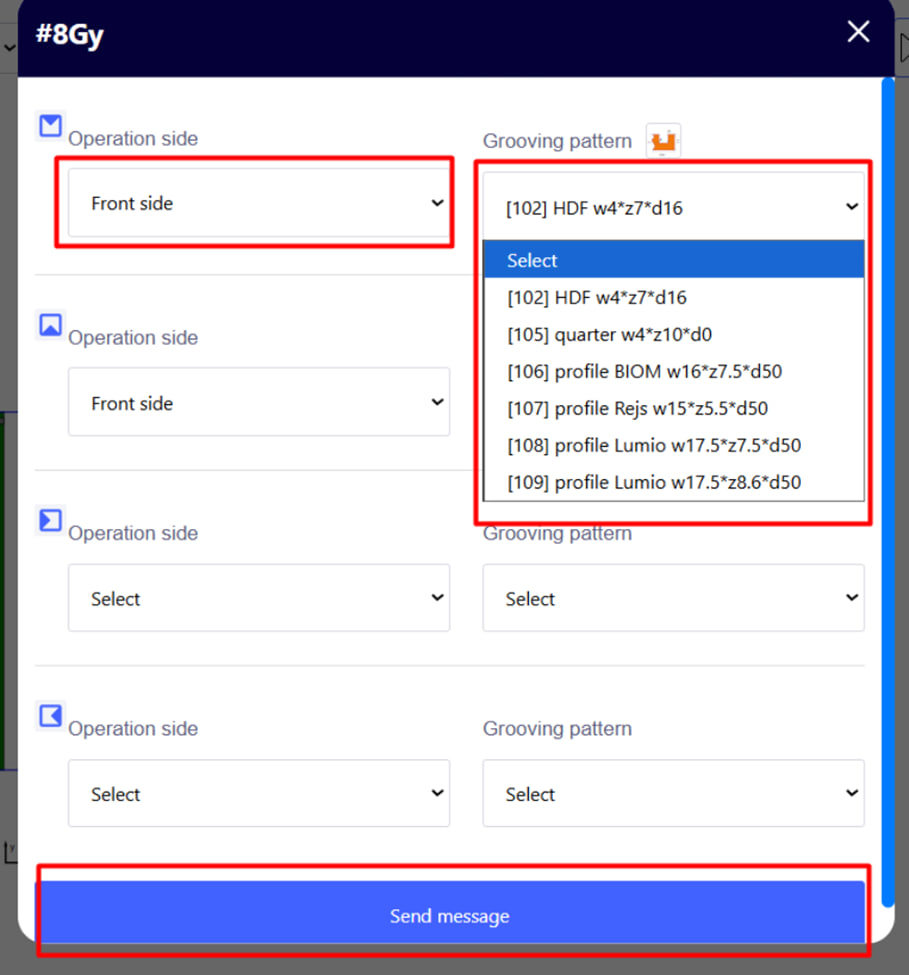
2. Create according to a template - choose the side of the operation, then the option you need from the ready-made templates. Click the blue " Add " button to confirm the operation. 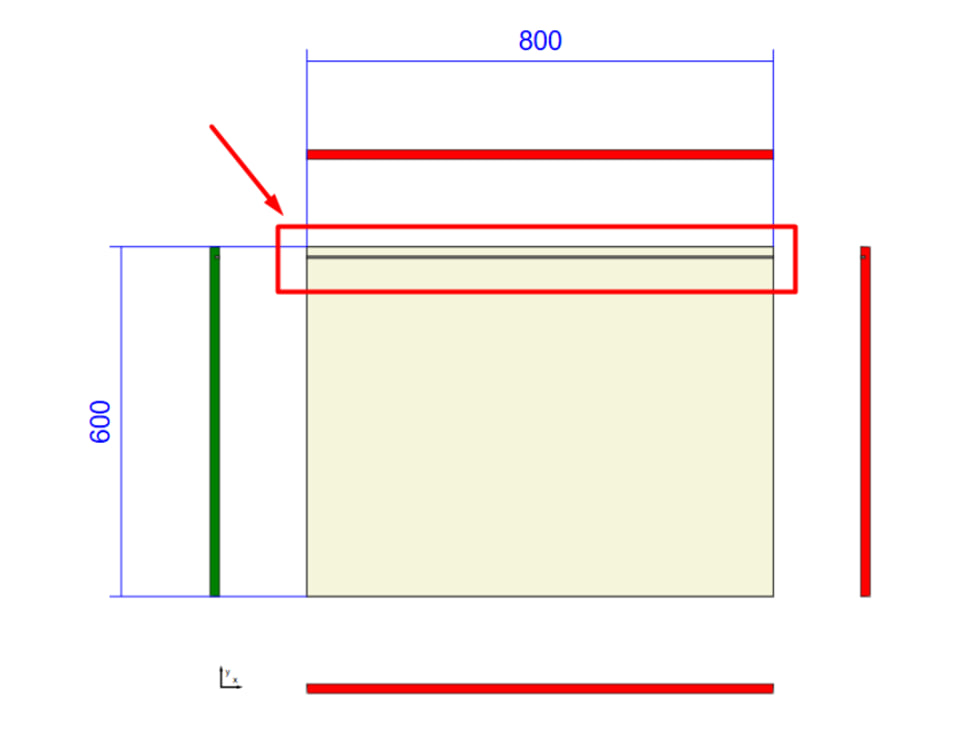
Note : If you select a ready-made grooving pattern, its parameters cannot be changed directly in this toolbar. All editing or creation of new patterns is done in the Groove Patterns menu.