
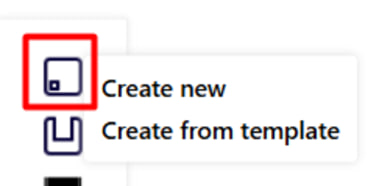
Drilling from 6 sides - You can add holes from any face of the part (front, back, top, bottom, right, left).
Select the Drill tool from the left menu.
Choose a drilling method :
1. Create a new one - you set all the parameters yourself . To do this, click on the appropriate option.
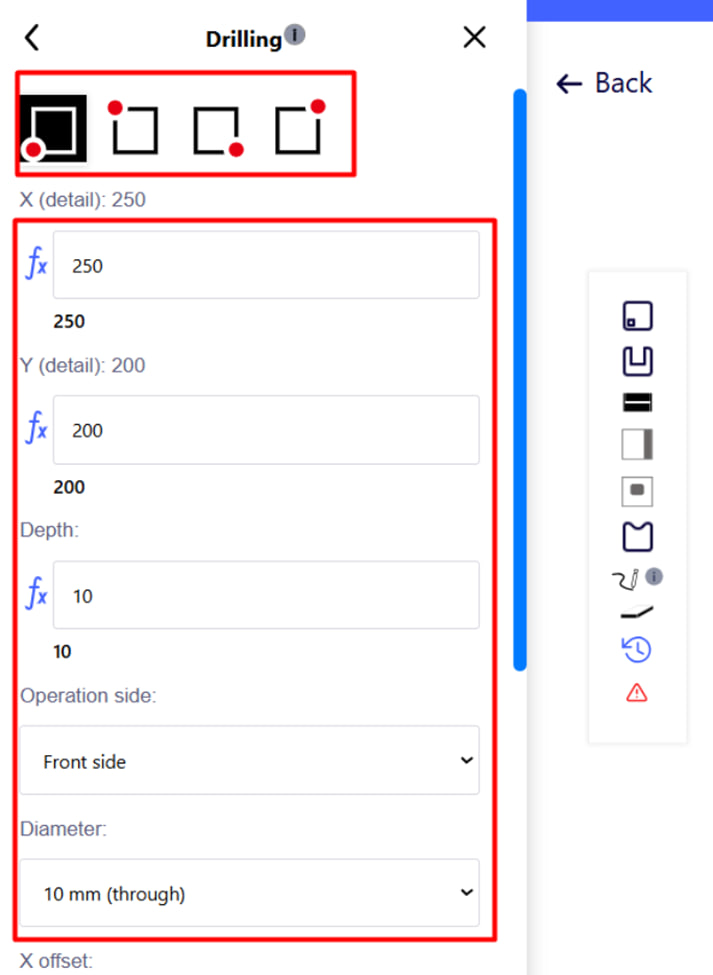
In the menu that appears, set the necessary parameters :
- drilling side;
- diameter;
- distance from the edge (X, Y);
- depth;
- etc.
Click the blue " Add " button to confirm the operation. After that, the hole will automatically appear on the part drawing.
Note : Drilling diameters can be selected based on the depth of drilling and availability of tools from the manufacturer.
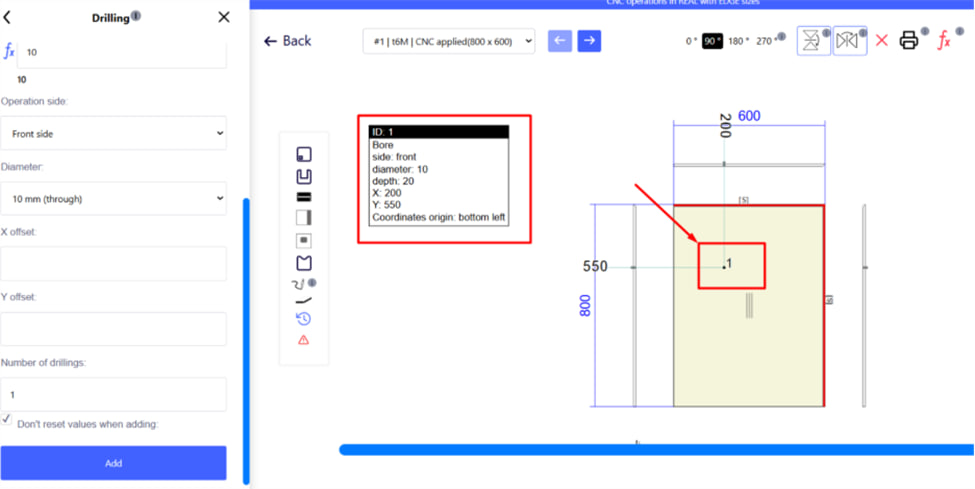
After adding a hole, you can see its parameters by hovering the mouse cursor over it in the part drawing. All dimensions are based on part dimensions.
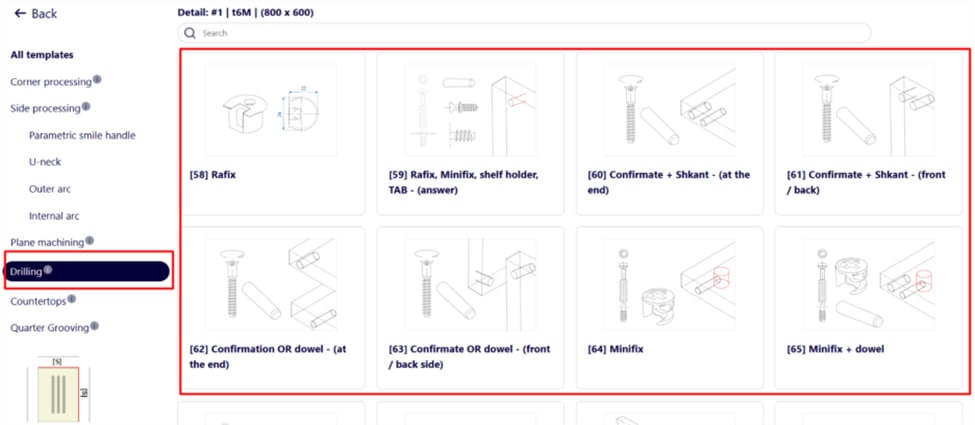
2. Create according to a template - choose the option you need from ready-made templates, for example " Curtain ".
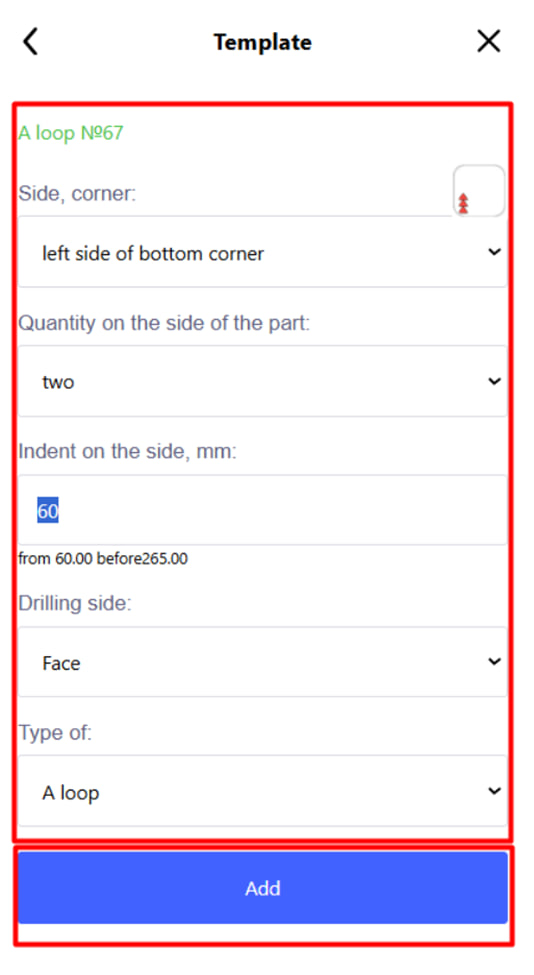
In the menu that appears, set the necessary parameters. Click the blue " Add " button to confirm the operation. After that, the hole will automatically appear on the part drawing.
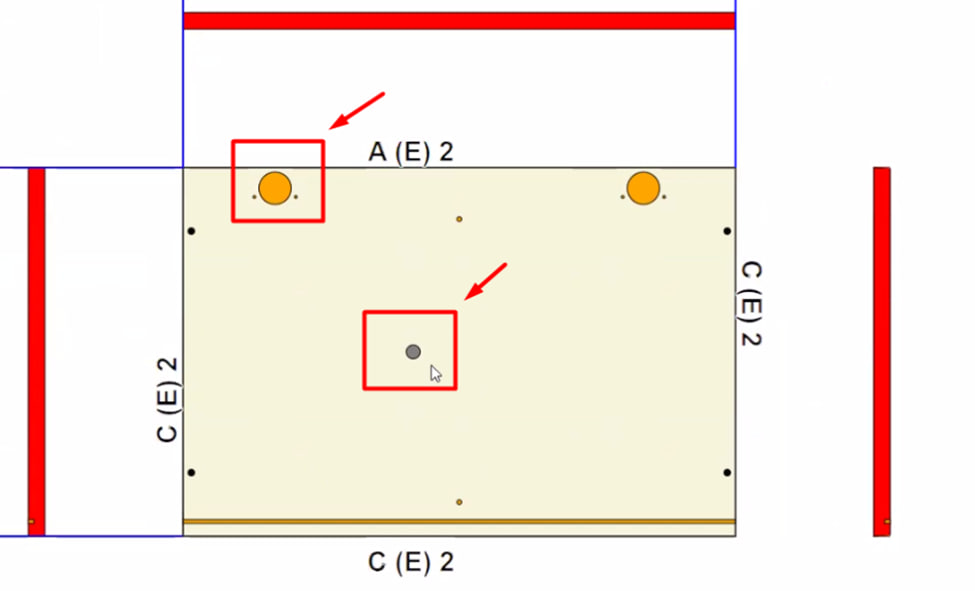
Important :
- All details are always displayed on the front side.
- The gray color of the holes means that the drilling is done from the front side.
- The orange color indicates the holes made from the reverse (back) side.