

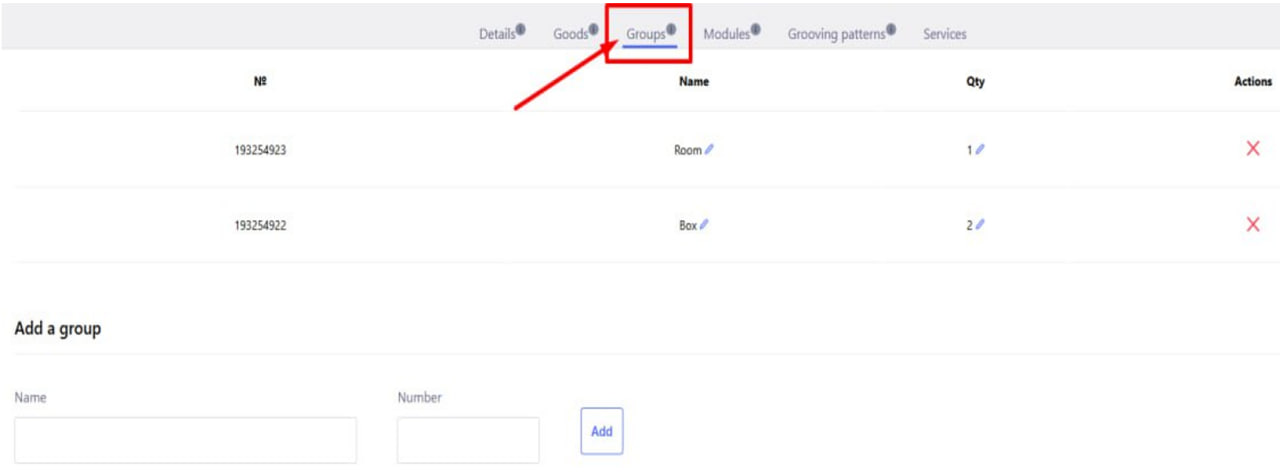
The " Groups " tab allows you to combine parts into logical blocks that correspond to parts of products, for example: "Table", "Pencil case", "Cabinet", etc.
This is especially convenient for projects created in design programs, where parts are already grouped by structural units.
Main purpose:
- Groups allow you to structure orders, making further processing, packaging, and assembly easier.
- You can create as many groups as you need.
- A part can be part of a group, or it can exist outside the group.
What you can do in the tab:
- Edit the name of each group for convenience.
- Changing the number of groups is important:
- If the number of groups = 5 and the number of parts = 1, the system will create 5 identical parts (1 for each group).
- Add new groups to the project as needed.
Importantly:
The number of groups directly affects the total number of parts to be cut . That is, grouping is not only an organizational tool, but also a functional element of order calculation .
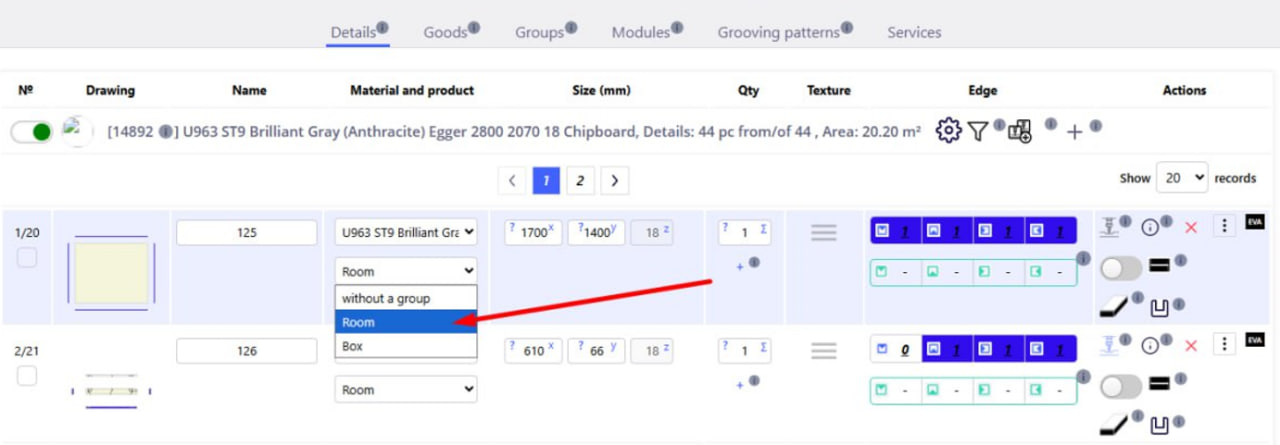
You can move parts from one group to another or change their group membership, which helps organize the structure of the product .
To do this, click on the corresponding drop-down list opposite the desired detail. After that, you will be able to:
- select an existing group (for example, Room, Box, etc.);
- or select without a group to remove the part from the group.