

The " Layout " button opens a visualization of the location of all project details on material sheets.
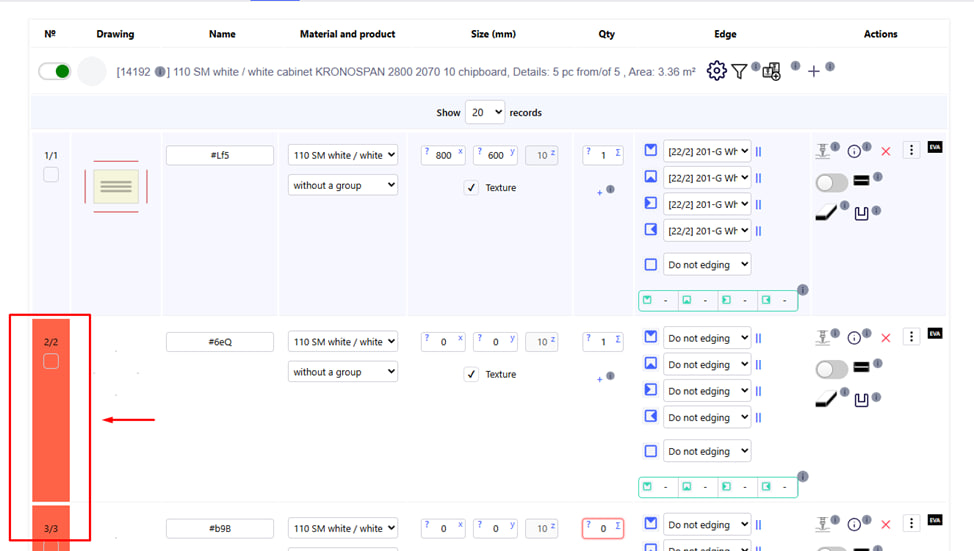
If there are errors in the project, the " Cutting " function will not be available .
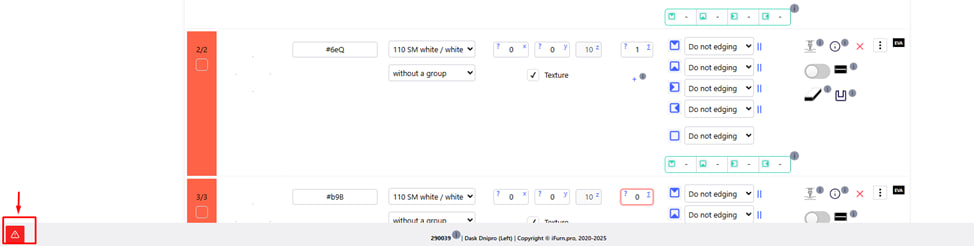
In order to view errors in the project , you need to press the corresponding red button in the lower left corner.
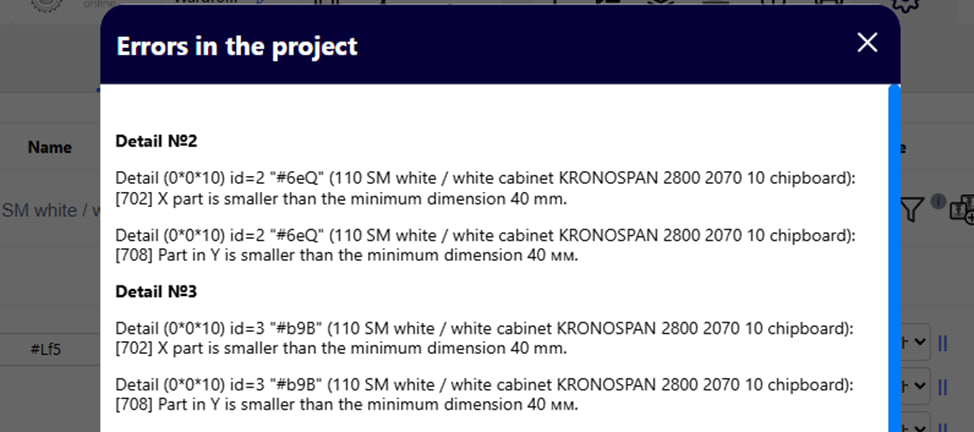
You will see a list of errors.

After correcting the errors, the " Cutting " function will become active (it will change its color from gray to black).
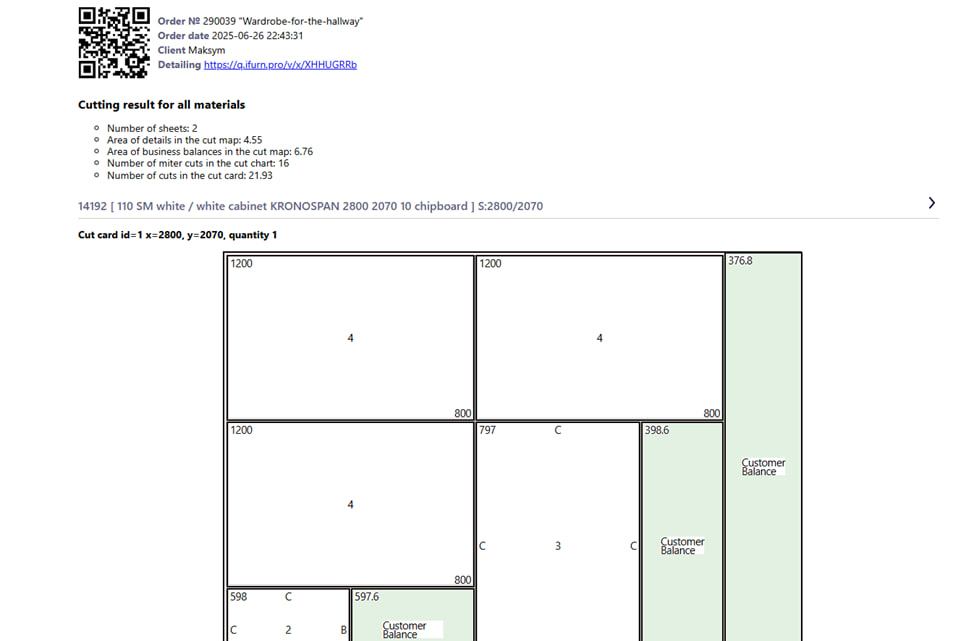
After clicking on the button " Cut ", the following information will be available to you:
- Detailing;
- Cutting map;
- Summary of the section on the material in the maps;
- Summary of the breakdown of all materials;
- Edge;
- ChPK statistics of order operations;
Note : The system automatically generates cut-out maps according to:
- sheet sizes;
- dimensions of parts;
- texture direction;
Showing balances:
- The map clearly shows which parts of the letter remain unused ;
- Remainders are marked in color.
Get cutting information for each material separately and for all materials together:
- Number of letters;
- Area of details in the cut map;
- Area of business residuals in the cut map;
- The number of face cuts in the cut map;
- The number of cuts in the cut map.
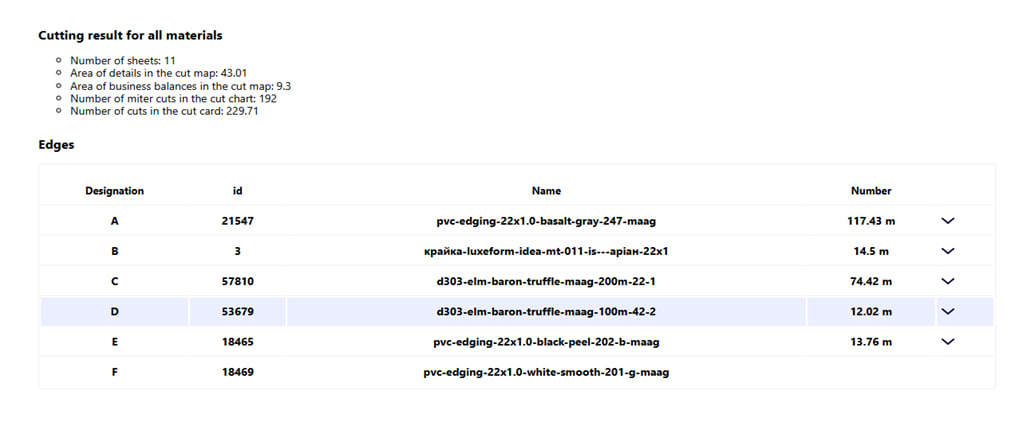
Below you will see a table of all edges used in the order. 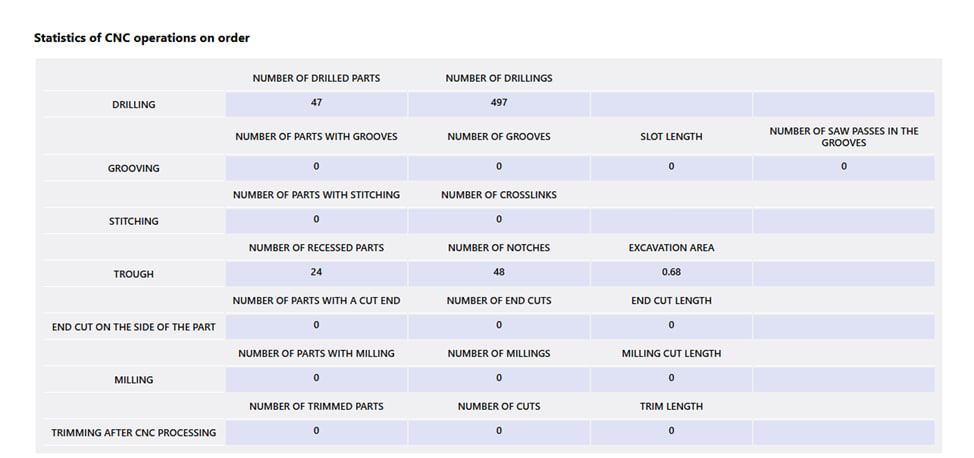
Also on this page is displayed a table of all CHPC operations.
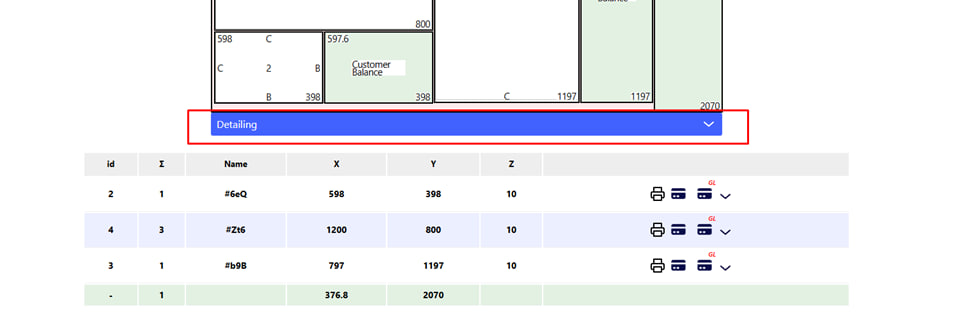
Detailing for each cutting sheet can be seen by clicking on the corresponding blue button .
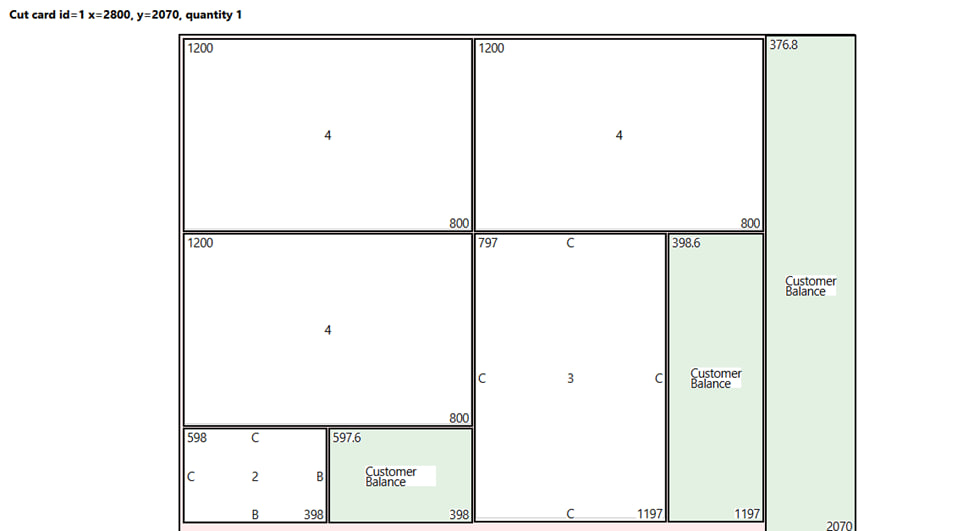
Visualization of each letter:
- Details are marked on the diagram according to their ID .
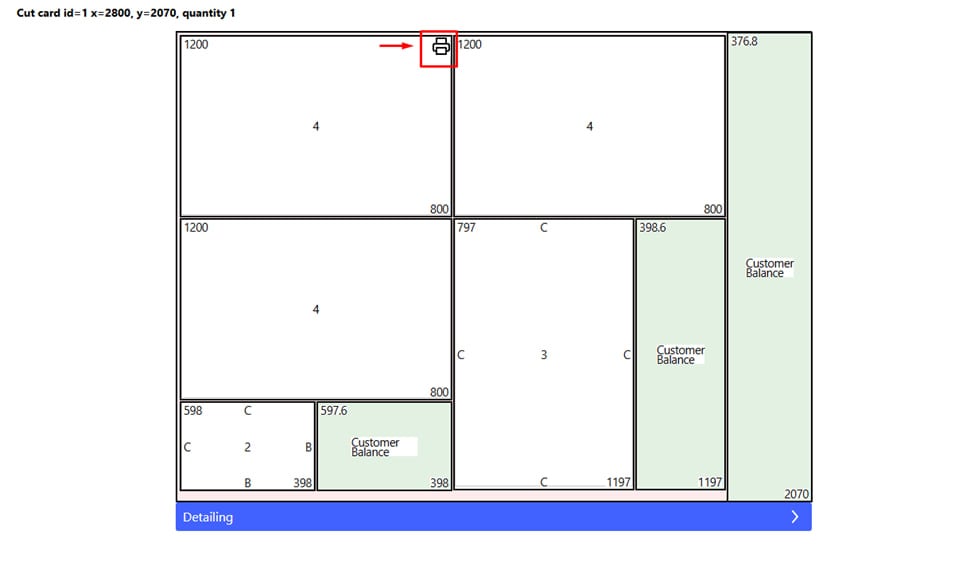
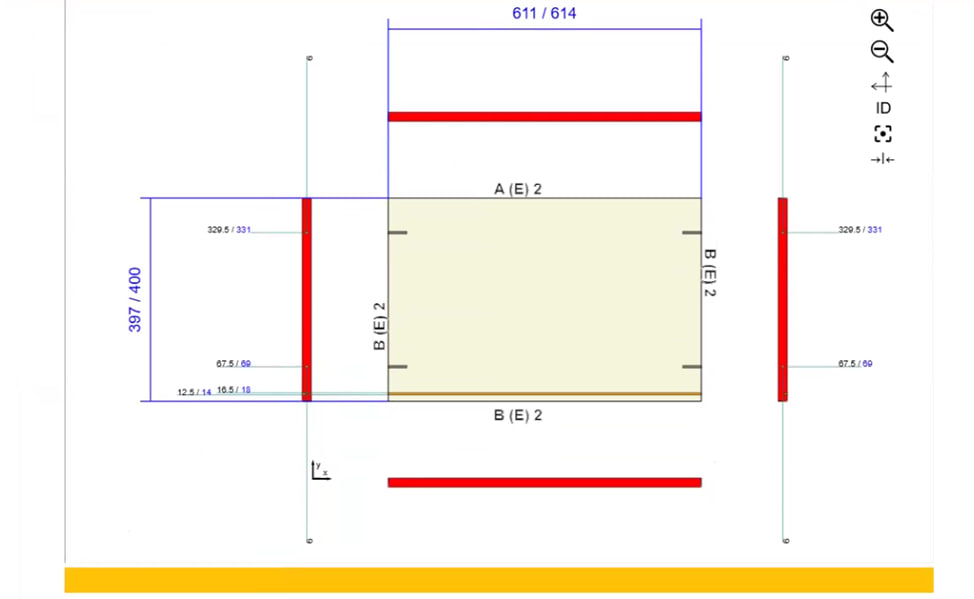
- The drawing of each part separately with a description of all treatments can be seen by clicking the button in the form of a printer , which is located in the upper right corner next to each part.
Additionally :
Before starting cutting, it is advisable to check the materials, their activity, the presence of treatments and the direction of the texture.
Important : Always update the cut after you finish editing all details for regenerating maps and costing.

The cutting results can be:
- Print (via the print menu), for this you need to click the button in the form of a printer in the upper right corner of the page.
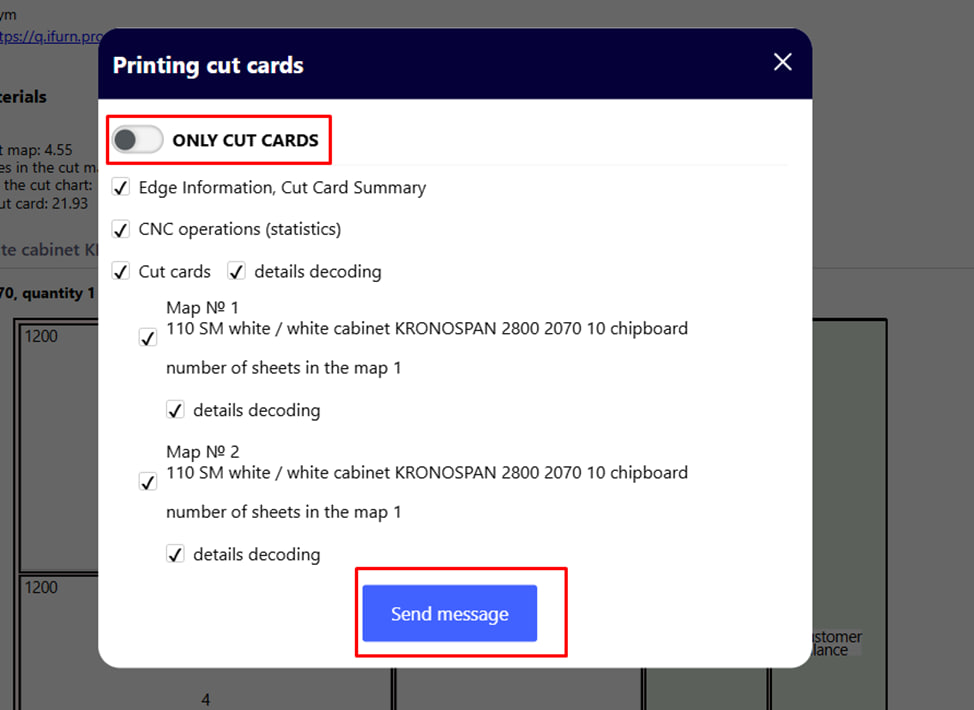
Choose : only cutaway maps, with full information, or check the boxes next to the options you want and click the blue Submit button. 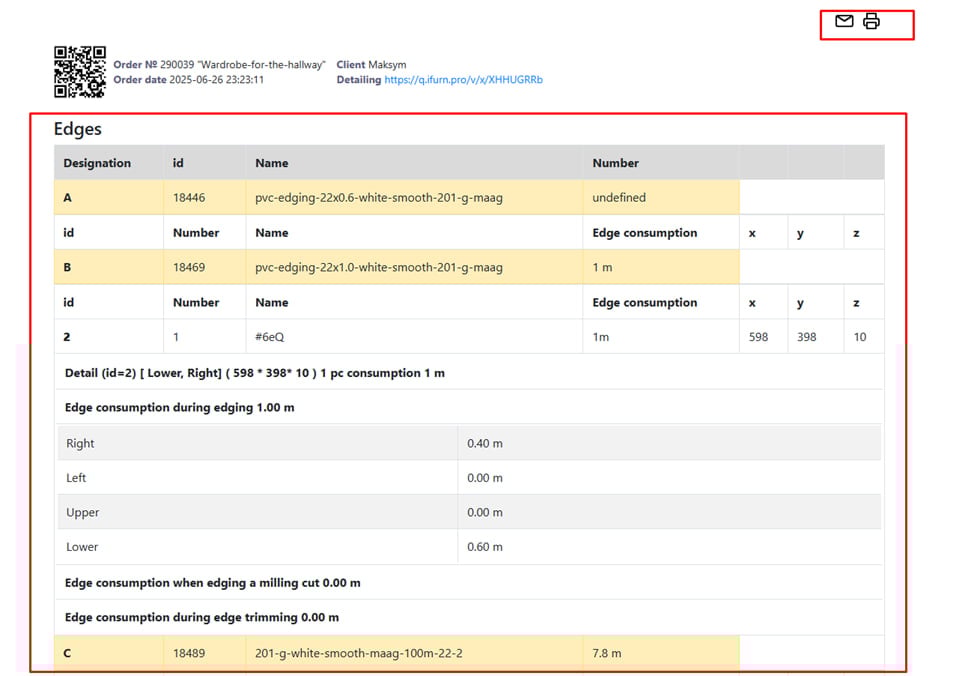
After that, you will get to the corresponding page , which can be sent to your email or printed .
2. View the labels by clicking the credit card button in the upper right corner of the page.
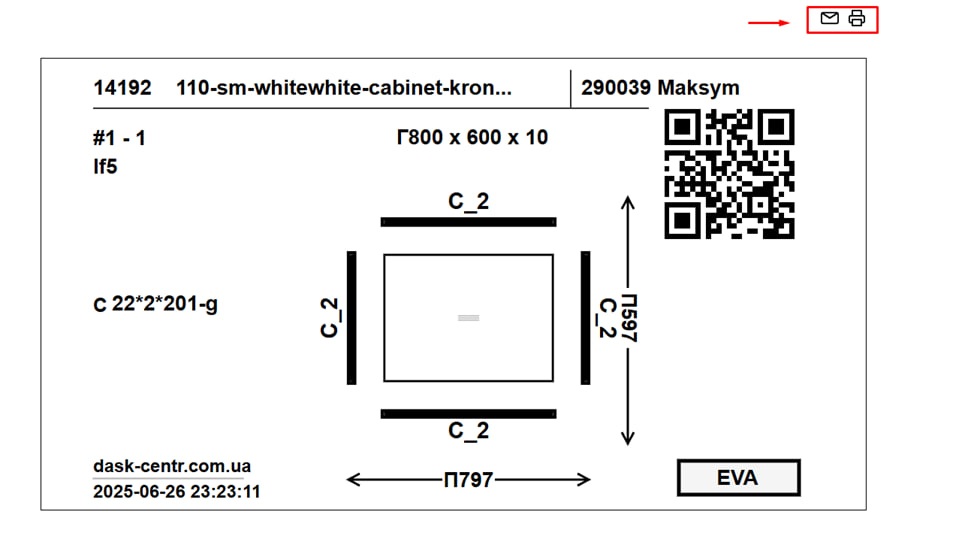
After that, you will get to the corresponding page , which can be sent to your email or printed .
3. Go to the calculation , for this you need to click the button in the form of a cart in the upper right corner of the page.
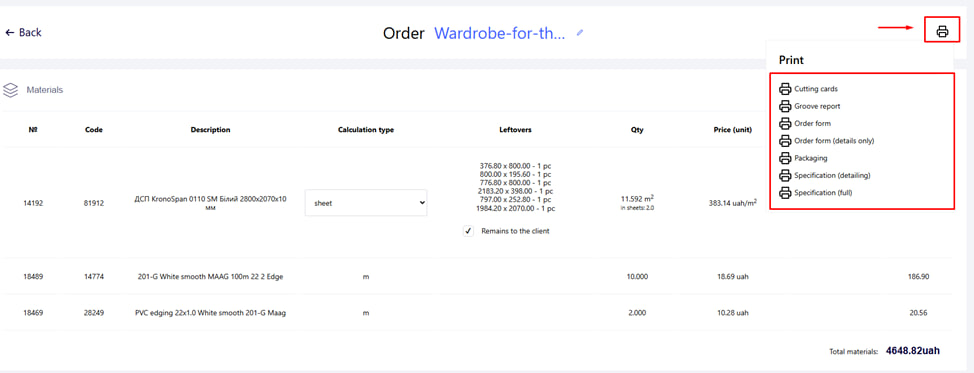
After that, you will get to the corresponding page . Here you can view and print the entire package of documents .