
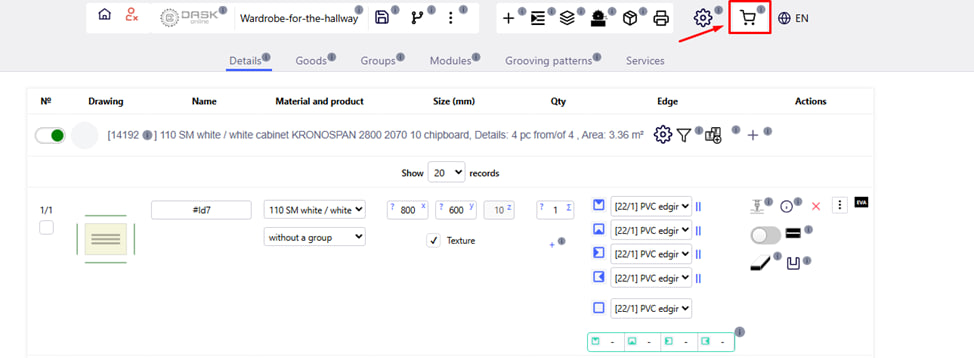
Click on the " basket " icon in the upper right corner to calculate the order.
At this stage, it is recommended to check the calculation of the order, the completeness of the ordered services and goods.

You can also see the PREVIOUS date when the order is ready.
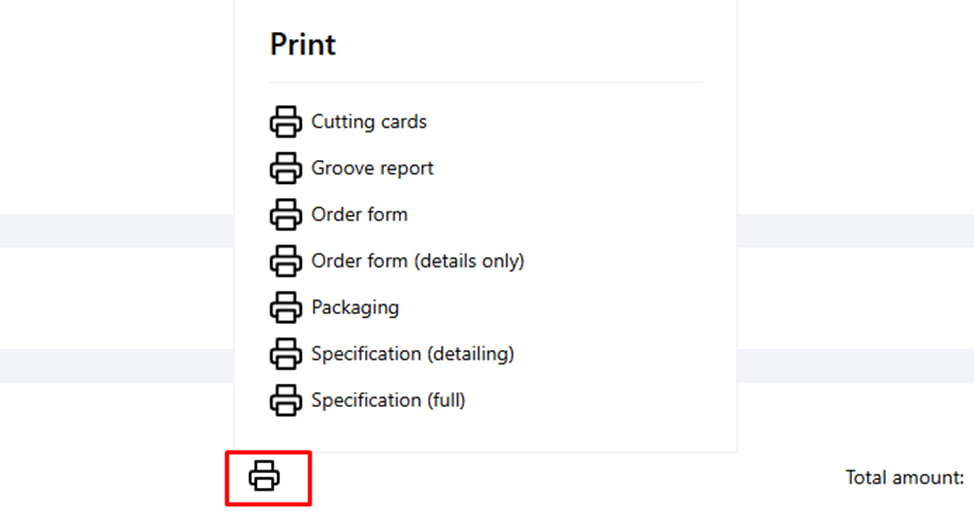
The " Printer " button allows you to access all forms and reports upon ordering . For example:
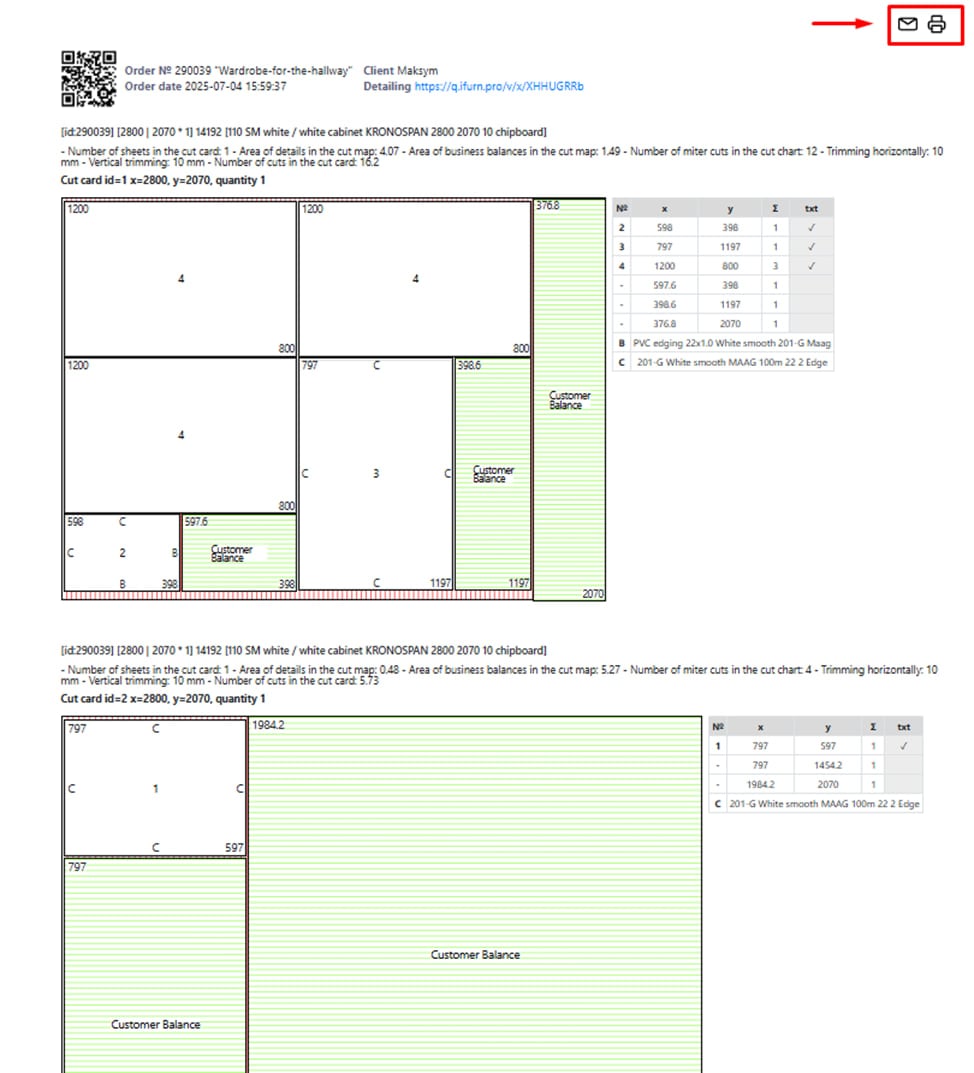
- Cutting cards is a report that contains individual cutting diagrams for each sheet of material used in the project.
Note : Each report can be printed or emailed . To do this, you need to press the corresponding button in the upper right corner.
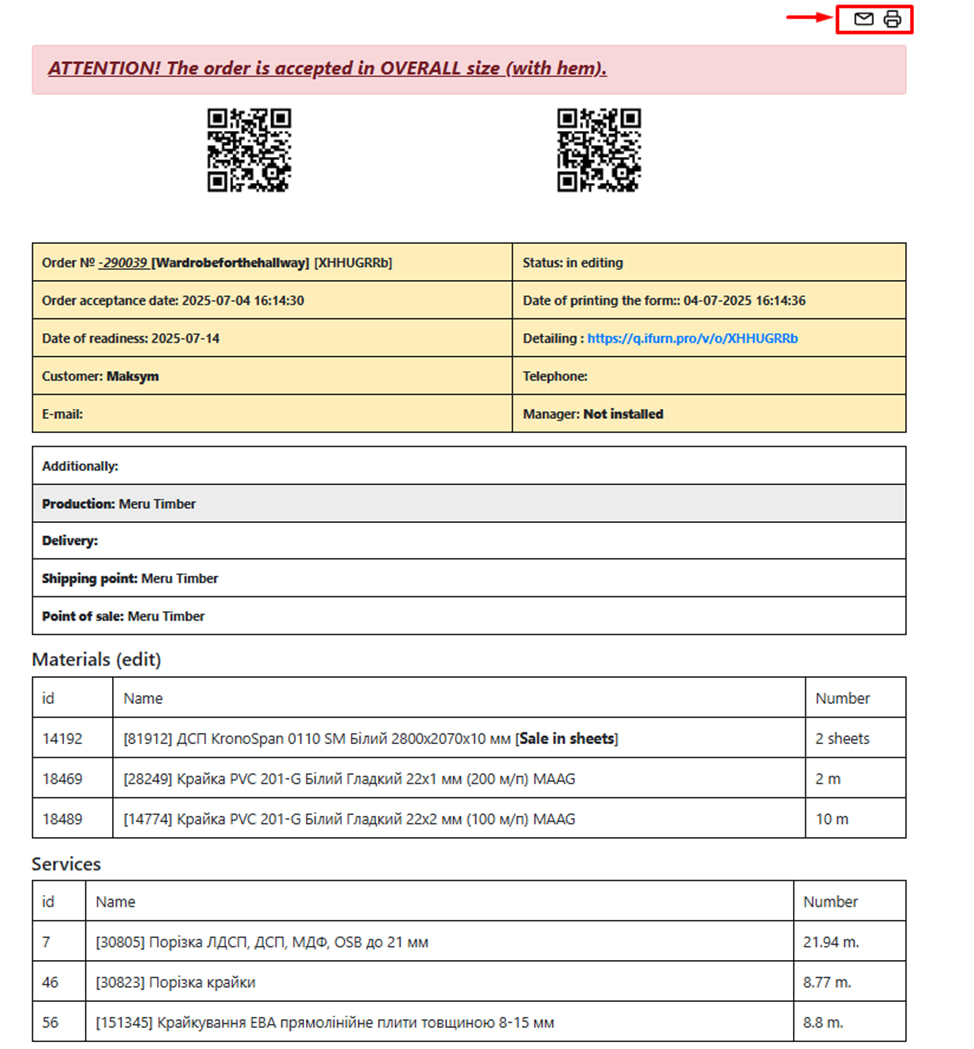
- Order form (details only) - this report forms a simplified specification that contains only a list of details without additional technical information, drawings or cutting diagrams.
To confirm your order, click the blue " Checkout " button in the lower right corner.
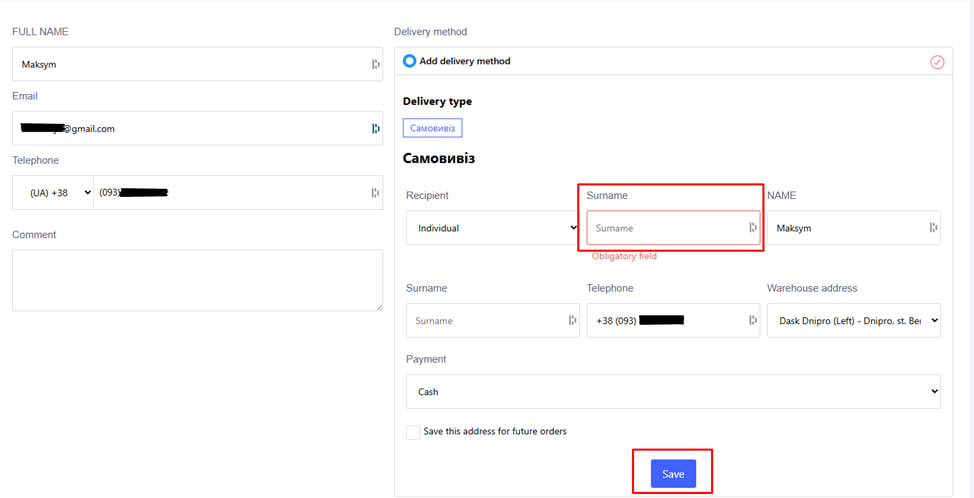
- Choose a delivery method (if the company offers different types);
- Fill in all required fields;
- Check all entered data;
- Click the blue “ Save ” button.
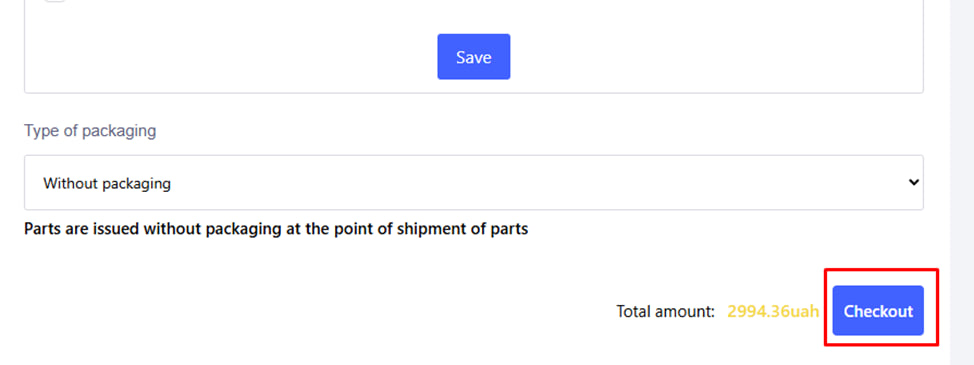
After you have saved the entered data, press the blue button in the lower right corner " Make an order ".
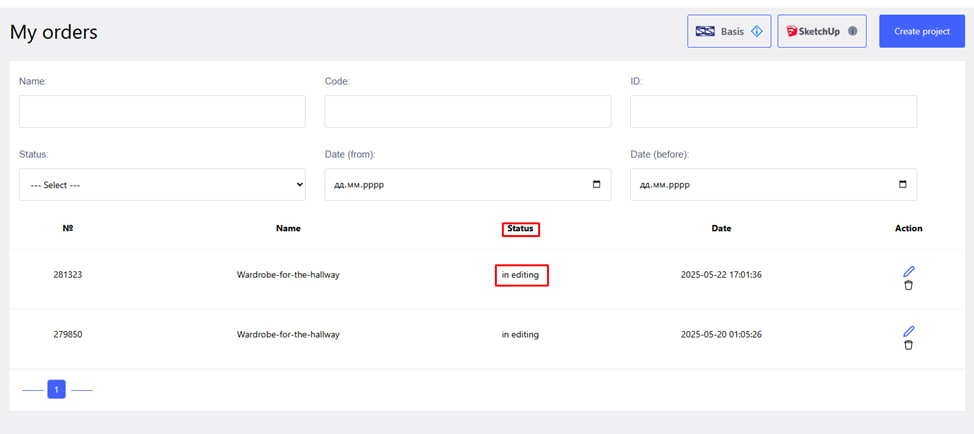
After placing the order, a corresponding message will appear, and the status will change to " confirmed ".
After you have placed the order , it will be sent to production and the company manager, after checking your order, will contact you to issue an invoice .
After payment of the invoice, the order will begin to be produced .