
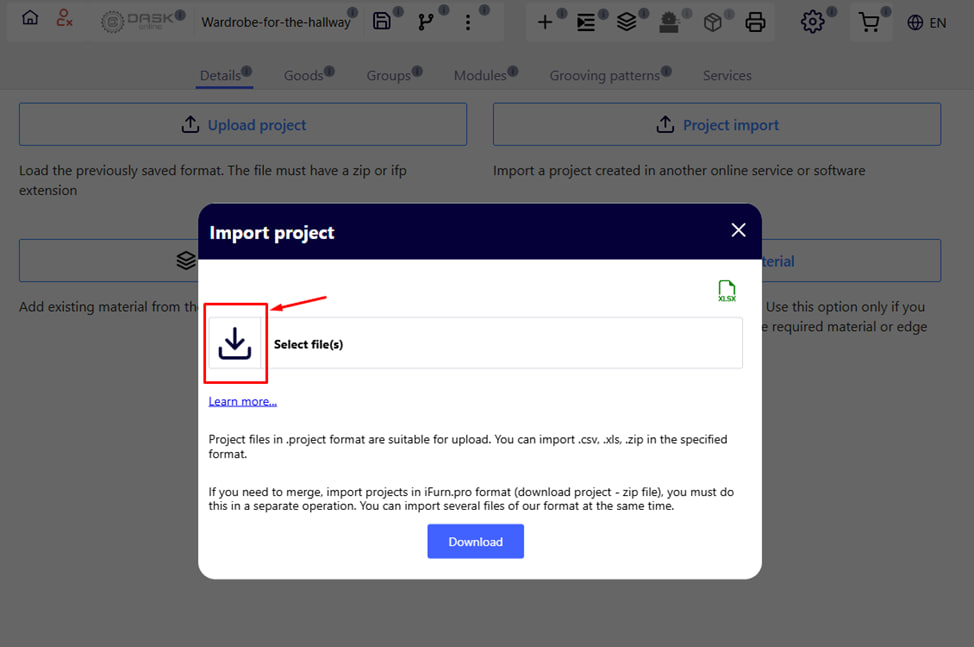
After clicking the Import project button, the project loading window will appear.
- Select the desired file on your computer.
- Click the blue Download button.
- After that, your project will be uploaded to the system.
Note : You can download one or more projects at the same time. All uploaded projects will be combined into one .
Also in this window it is possible to download the project through an Excel file.
- To do this, click on the corresponding icon in the upper right corner.
- After that, the template will be automatically downloaded.
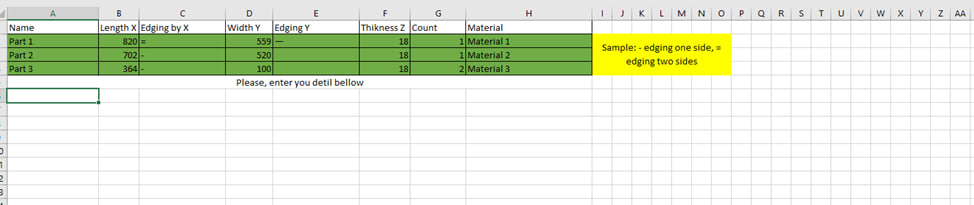
- Fill in the table according to the sample and save the file.
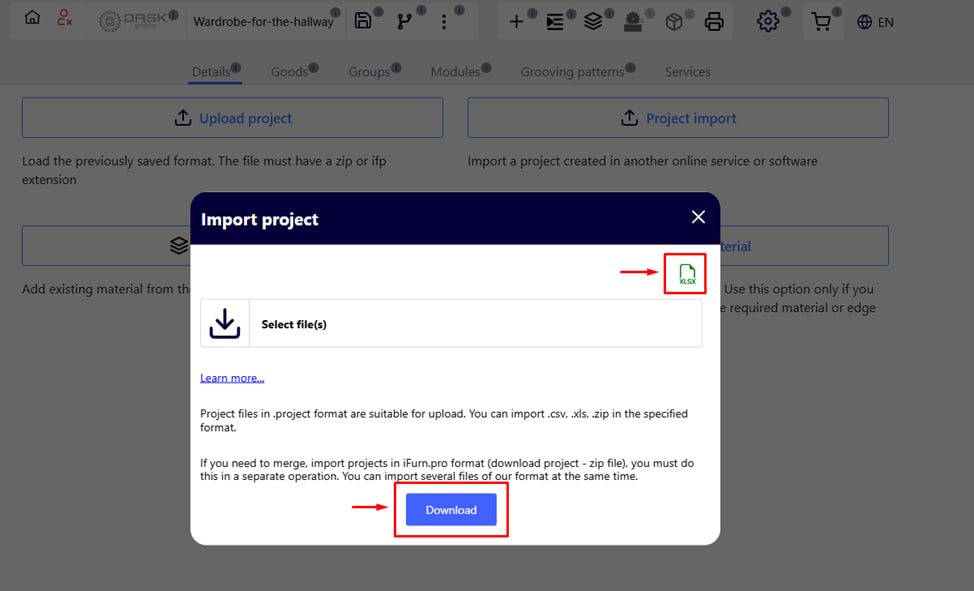
- After that, download the file by clicking on the appropriate button.
Importing from Excel allows you to load into iFurnPro detailing, where edging with only one edge is indicated.
Note : Drilling and milling are not included in this case.
When to use Project Import:
If you have prepared a 3D project, drawing or specification in other platforms or design programs, and want to transfer this data to the system while saving all order processing.
Advantages:
- Saving time;
- Avoiding repeated data entry.
Important : In the import window, you can select a material from the company's database for replacement or leave the material that was in the imported file. As a result, you will receive detailing with the specified marking.