
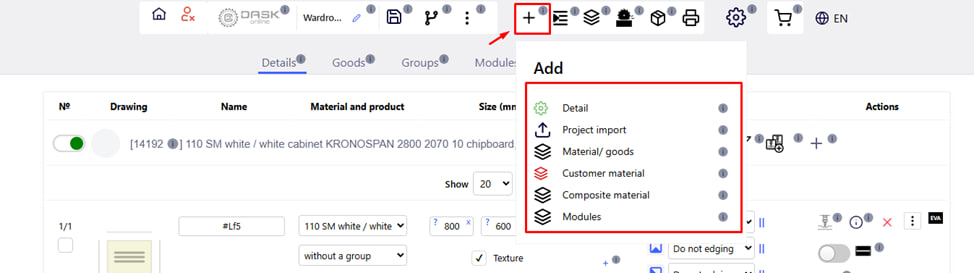
Clicking on the + icon will open a menu where you can enter input data for the project:
- Add details. The " Detail " button is used to add a new detail to the project. By clicking it, you open the " Add new detail " template, where you need to specify a name, select a material, set the length and width, and determine the number of details.
- Import data. The " Import project " button is used to load data into a project from .project or .csv files, as well as via an Excel template. You can import one or more projects at a time, select existing materials for parts, or create new ones. After clicking the " Submit " button, the data is imported into the system.
- The " Material/Product " button is designed to add the necessary materials and products from the Company Database to the project . You can select the desired material (for example, chipboard, MDF, edge banding) or product (hardware, accessories) to use them in the future in creating and detailing the order.
- Add Client Material . This button is used to add your own materials or edges that are not in the Company's database. To do this, you need to fill out a special template, after which the material will become available in your project for further use.
- Add Composite Material. This button allows you to create a material consisting of several layers (parts) of different materials. Layers are parts without edges that can be stitched. Parts can be combined into a composite material if they:
- without edging;
- have the same dimensions;
- in the same quantity;
- belong to one group or do not belong to any group.
- Add Product . This button opens a section that displays finished products created in the designer by the contractor and available to the Client.
Key features of the Product button:
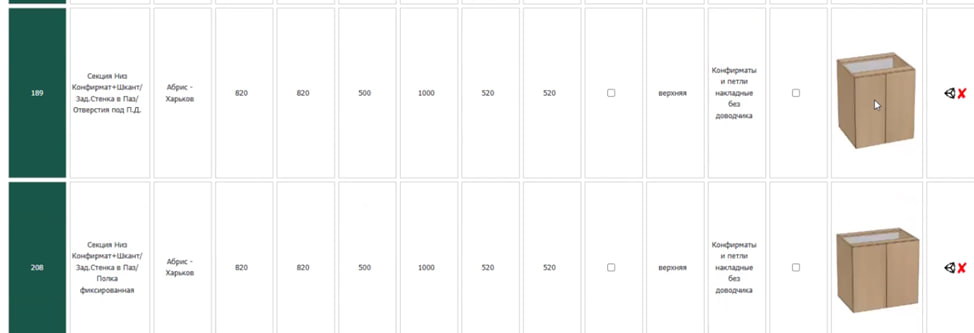
Products are pre-designed modules (e.g., cabinets, cabinets, shelves) containing a ready-made set of parts, which, after entering parameters, are automatically calculated and added to the project as a regular cut .
You cannot change product details, you can only edit the product they belong to. If you delete a product, all details for it will be deleted .
You can:
- Select the desired product from the list;
- Configure its parameters: overall dimensions, material;
- Download the finished product detailing;
- Send it to cutting immediately.
If the company's products have not yet been created or are not open for access, the list will be empty and the system will report: "No possible product options found."
When it is convenient:
- If you need to quickly assemble a typical product without manually creating parts;
- For product standardization (e.g. in mass production);
- If you do not work in CAD systems, but want to order a ready-made solution customized to your dimensions.