
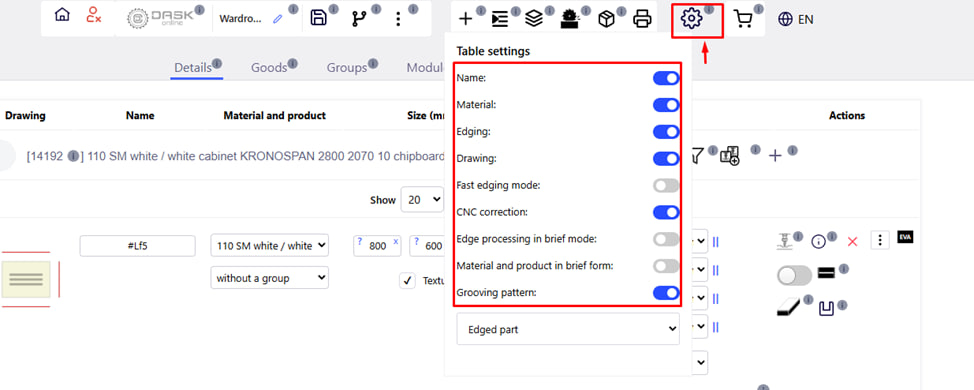
When you click the " Settings " button in the form of a gear icon, a menu opens that allows you to configure which fields and parameters will be displayed in the table with details.
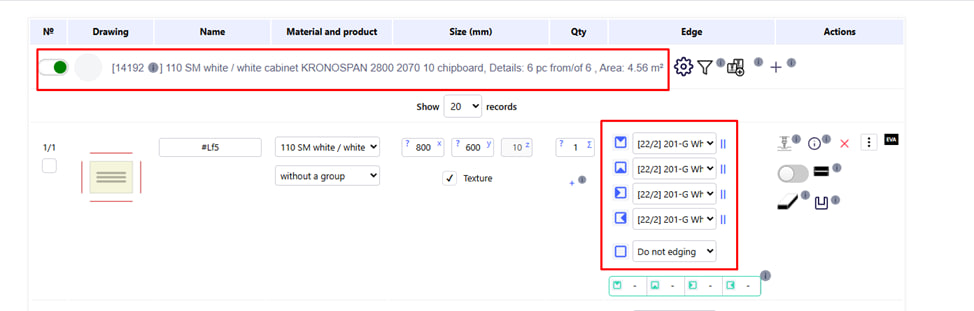
For example , this photo shows the material and edging .
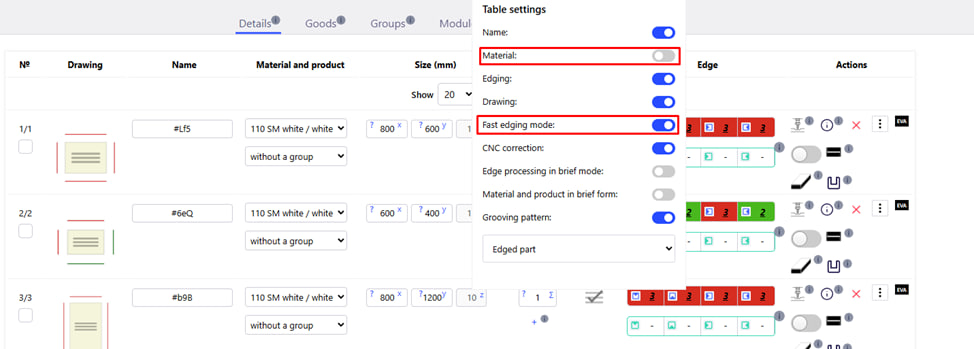
In the settings menu, we have hidden the material and enabled the fast edge assignment mode .
Note : fast edge assignment mode - used when adding detail via the keyboard. When the mode is on, edging is set using a space . This allows you to quickly activate or deactivate the border on each side without using the mouse.
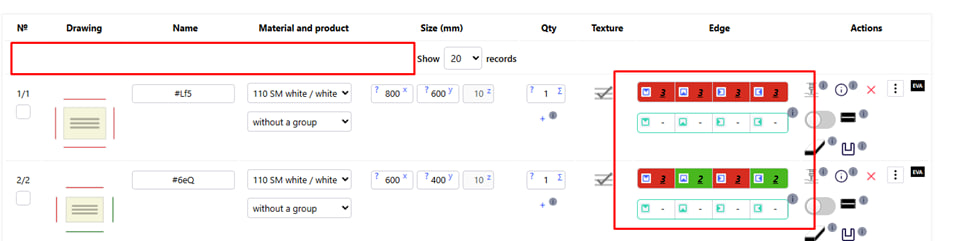
The selected settings are immediately applied in the detail table.
That is, these settings help to adapt the appearance of the table to your needs — for example, to remove unnecessary information or, conversely, to display the necessary parameters for checking.
Main switches:
- Name – Display or hide the name of the part;
- Material (Material) – Shows or hides the material type/name;
- Edging – Adds or removes columns with information about edging;
- Drawing (Drawing) – Displays the technical drawing of the part in the form of a sketch;
- Fast edging mode (Fast edging mode) - Enable fast edging mode. Allows you to quickly apply edging to several sides without unnecessary clicks;
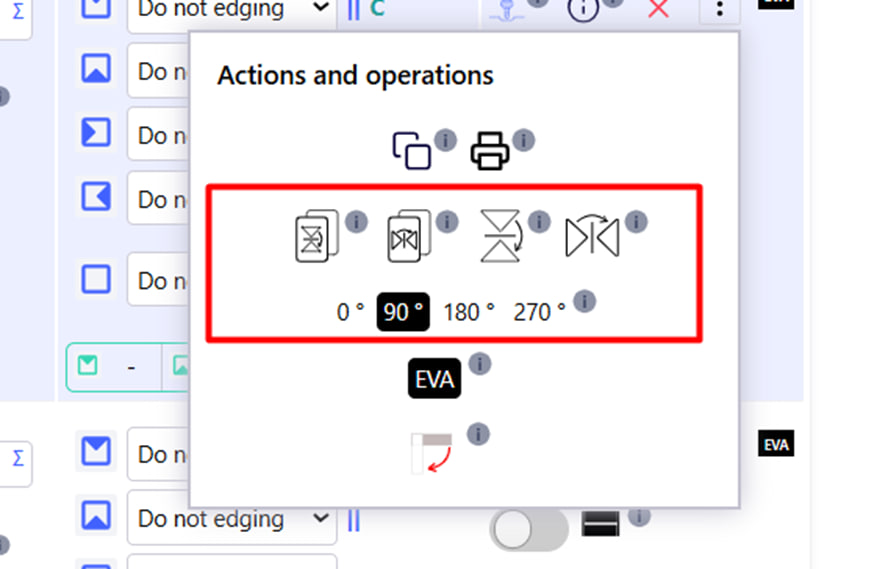
- CNC correction (CNC correction) – Adds a column with corrections of CNC operations (copying with mirroring, mirroring and rotation of the part);
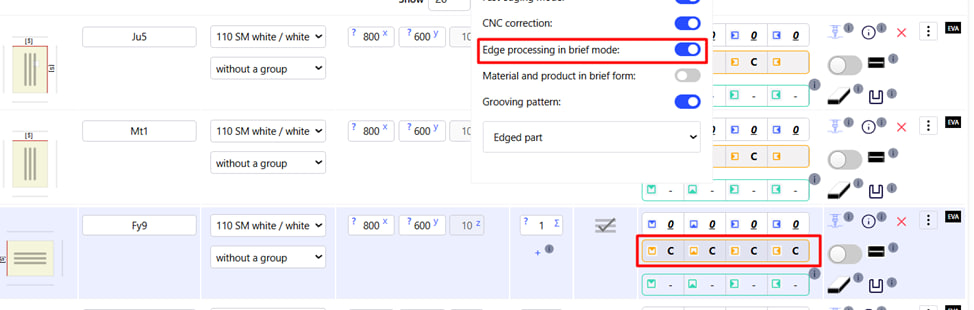
- Edge processing in brief mode ( Processing of ends in abbreviated mode);
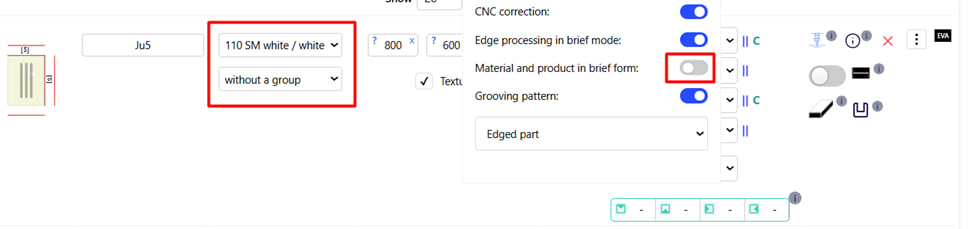
- Material and product in brief form (Concise display mode of material and product) - saves space in the table;
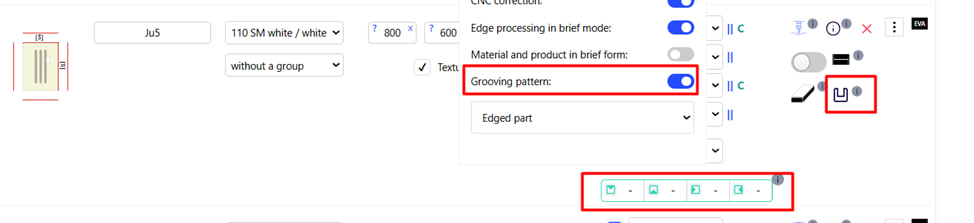
- Grooving pattern – Display of grooving patterns for parts.
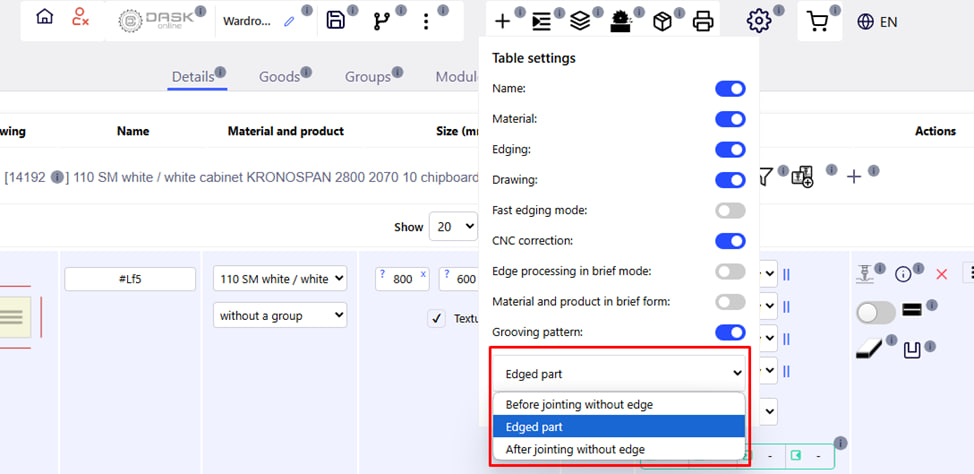
- Drop-down list (detail input mode).
In the lower part of the menu, you can choose the detail input mode:
- Before jointing without edge - before jointing without edge;
- Edged part – overall size;
- After joining without Edge - after jointing, but without an edge.

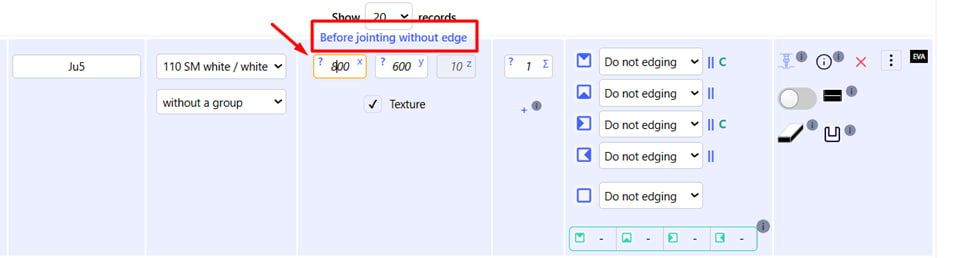
The input mode is indicated differently in the size table, and the name of the selected mode is displayed when the mouse cursor is hovered over it.