
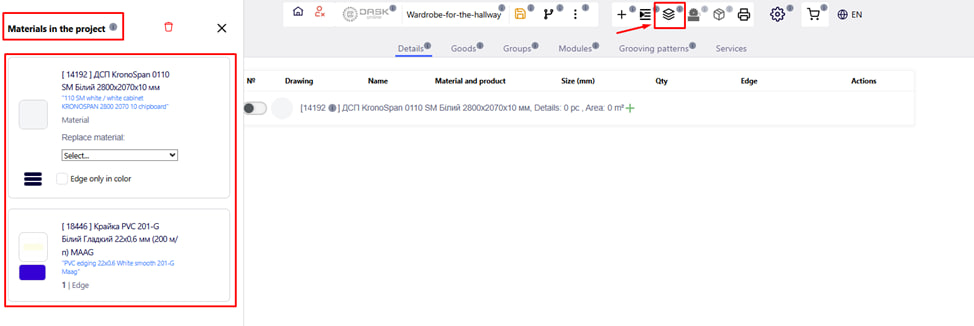
Clicking on the menu button " materials in the project " will open the menu for setting the added material to the project.
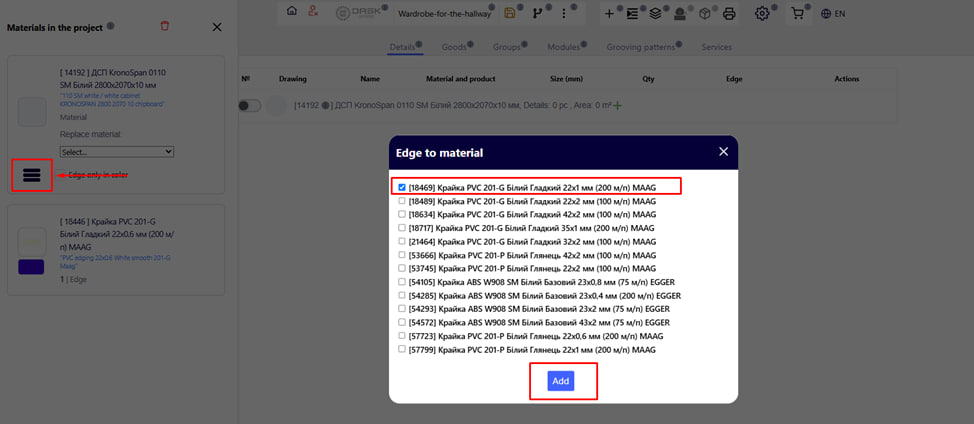
If you did not add the edge recommended by the company when choosing chipboard, you can do it by clicking on the main menu button " materials in the project ", and then on the button on the left " three stripes ". After clicking, the edge menu will open. Select the desired option and click the blue Add button.
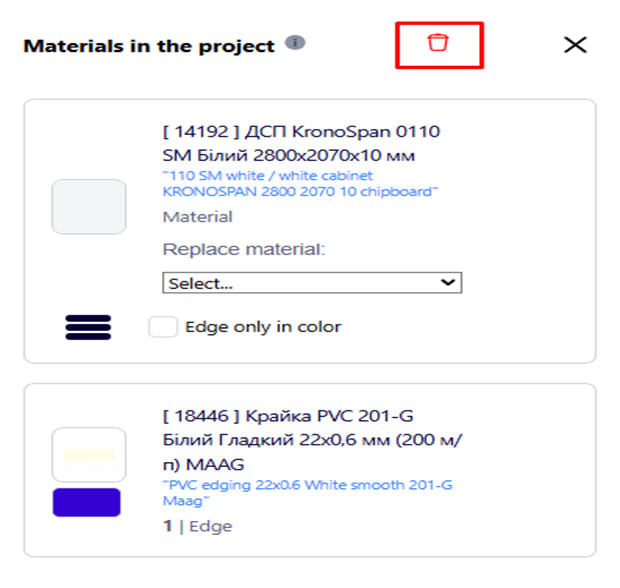
By clicking on the trash can icon, you can delete all materials from the project at once .
Be careful!
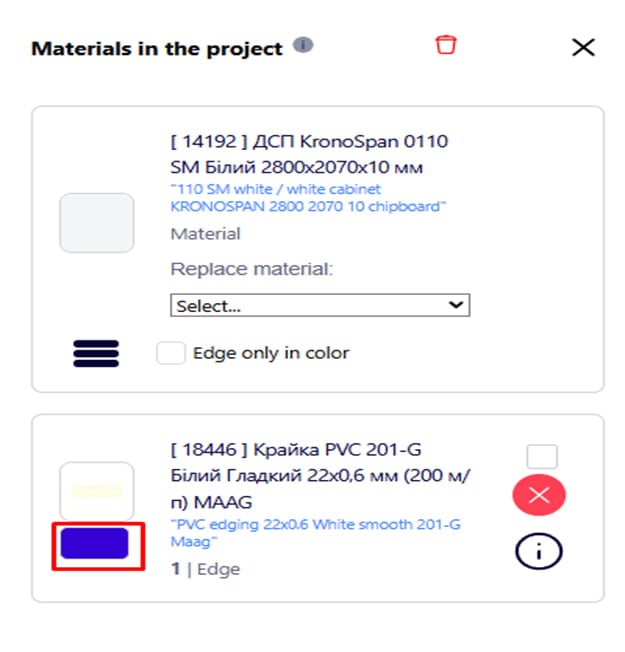
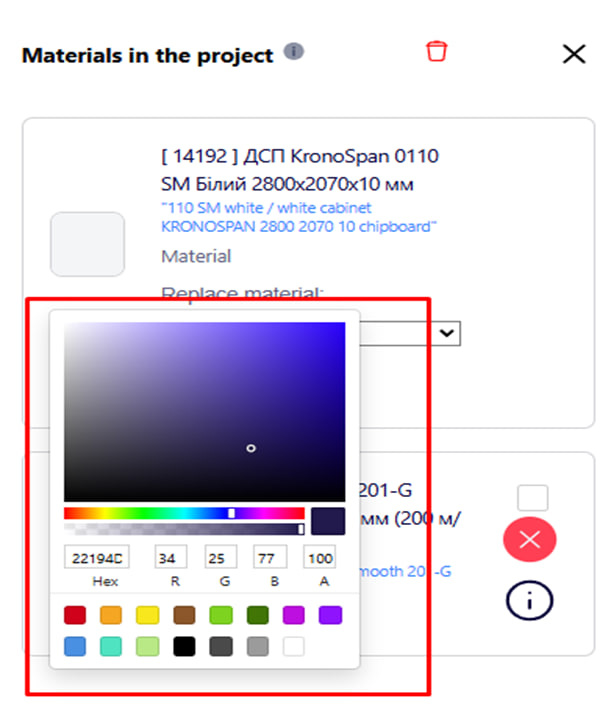
Clicking on the color block will open the edge shade settings for the quick add edge table.
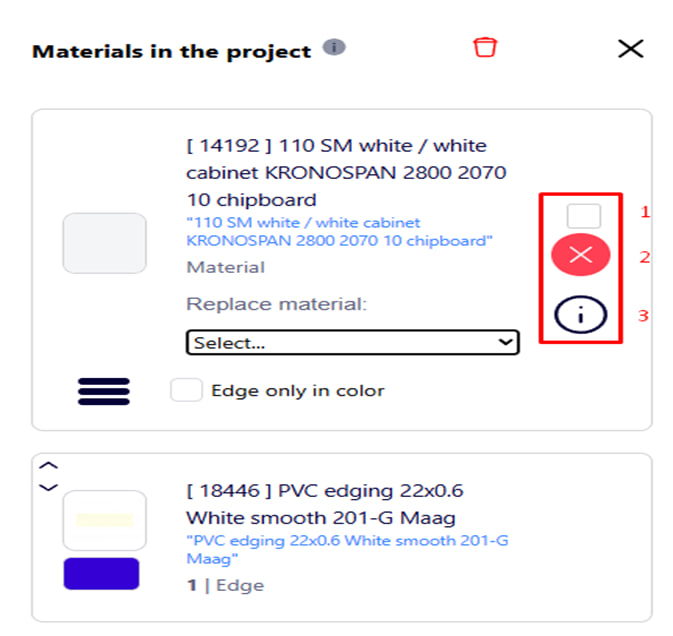
After placing the mouse cursor on the added material , three buttons will appear which are responsible for:
1. Delete the selected materials from the project.
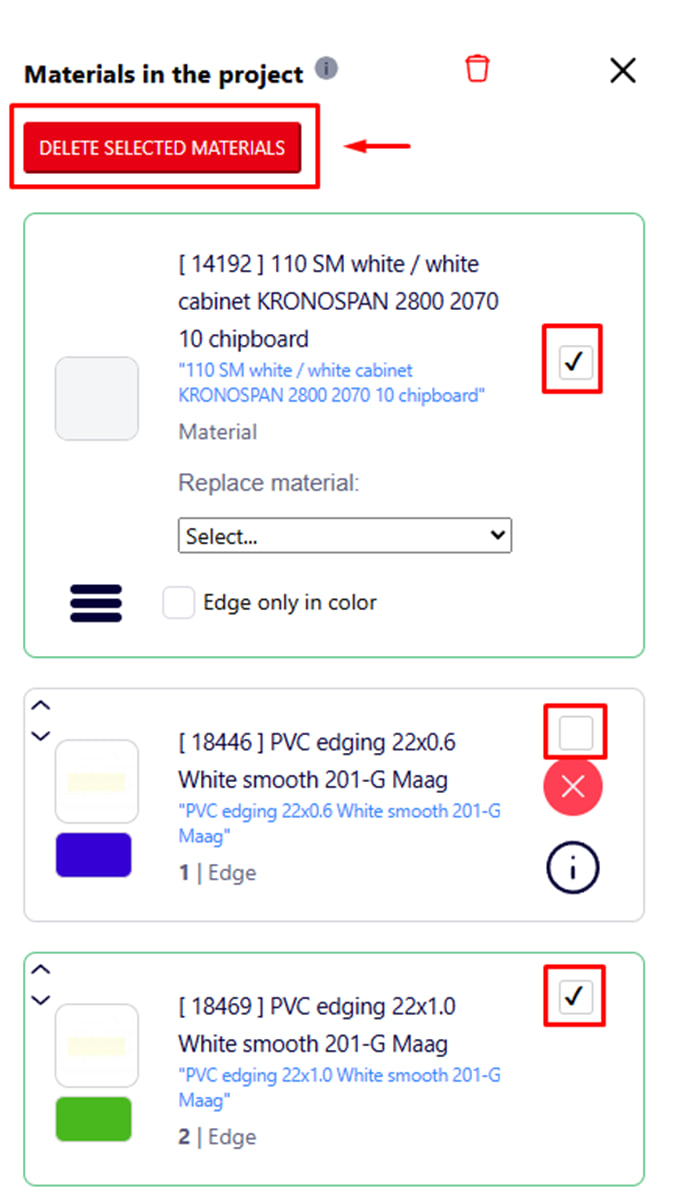
If certain materials are no longer needed in the order, they can be quickly removed from the list of materials in the project.
To do this, put a check mark next to the material you want to delete . After you do this, a big red button will appear. By clicking on it, the selected material will be deleted immediately .
2. Delete specific material from the project. To do this, press the corresponding button in the form of a red cross . Note : After clicking this button, a window will appear confirming the deletion. Only after you confirm the deletion , the material will be deleted.
3. Material properties - allow you to view or change the parameters of a specific product (used in the project), which will be taken into account during cutting , calculation and printing of documentation.
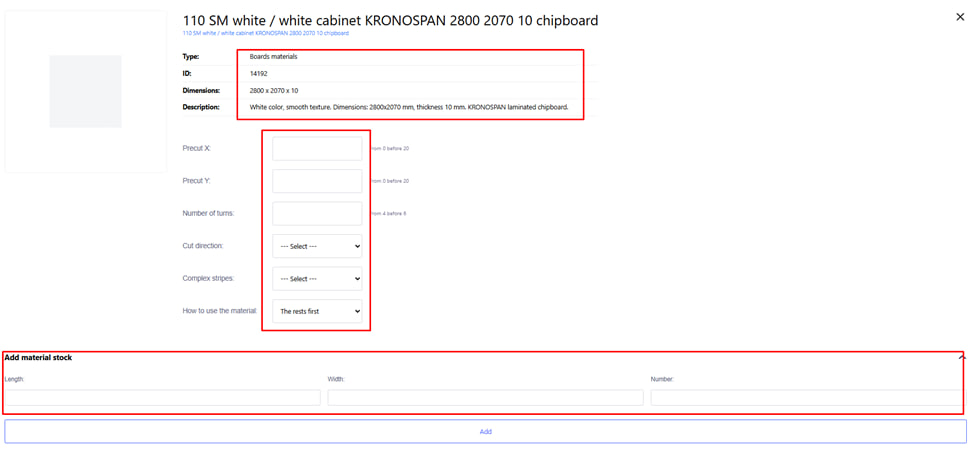
After clicking on the corresponding button next to the material in the project list, a page with material properties opens.
Here you can change parameters for a specific order, a specific material, such as:
- Ending X / Ending Y – Sets the value for cutting the extreme zones of the sheet horizontally (X) and vertically (Y). You can leave the default values or enter your own.
- Number of revolutions - Indicates how many times the sheet can be turned on the equipment during cutting. This parameter affects the options for stacking parts and optimization of residuals.
- The direction of the first cut - Allows you to choose from which side to start cutting:
- Along (along the length of the sheet);
- Across (the width of the sheet).
This parameter affects the type of residues and can help you choose the most effective cutting option for your project.
- Complex Bands – Determines whether complex cutting patterns (with non-standard stacking) are allowed. They can reduce material consumption, but increase cutting time. It is used as needed for complex projects or maximum savings.
- Order of material use - indicate what should be used first:
- First the leftovers;
- First, full-length letters;
- Customer balances and letters (if the customer provides their own material).
This choice allows the system to automatically decide which resources to cut first.
Additionally:
- Adding the remainder manually - If necessary, you can add the remainder of the material manually by specifying their dimensions. Such leftovers will be available in the current project.
This page also displays the basic information of the material:
- Type — material category (for example, chipboard, MDF, etc.);
- ID — unique internal number of the material;
- Dimensions — standard sheet dimensions (length × width × thickness);
- Description — color, texture, purpose, manufacturer;
- Quantity of material.
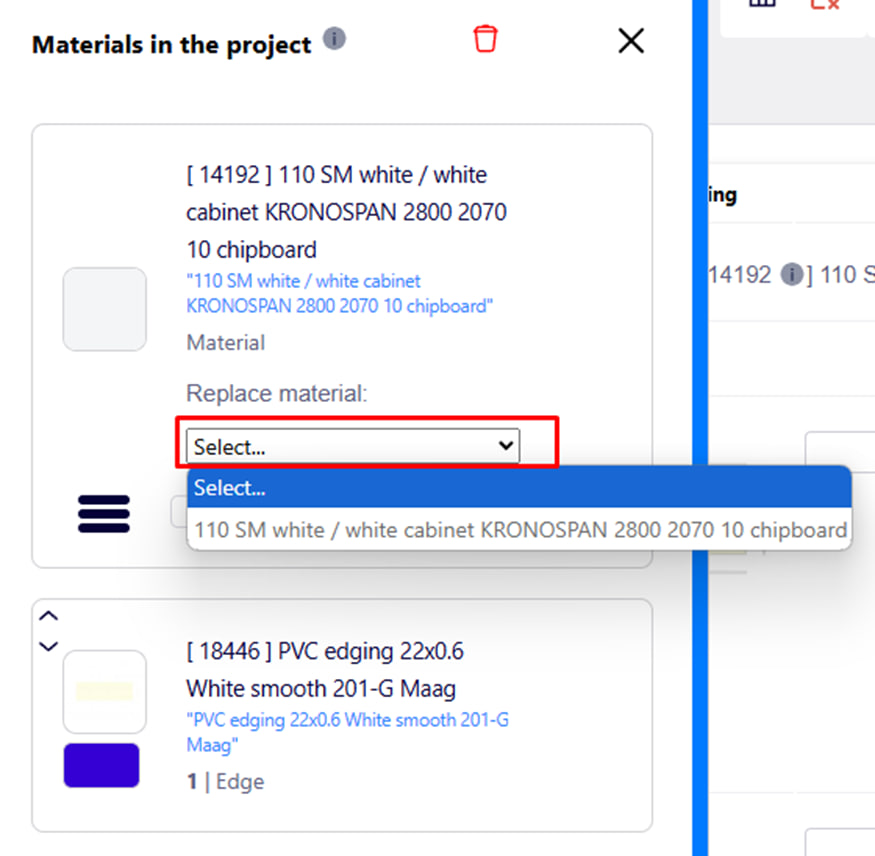
In this menu, you have the opportunity to change , for example, the imported material to the selected material from the database of this company .
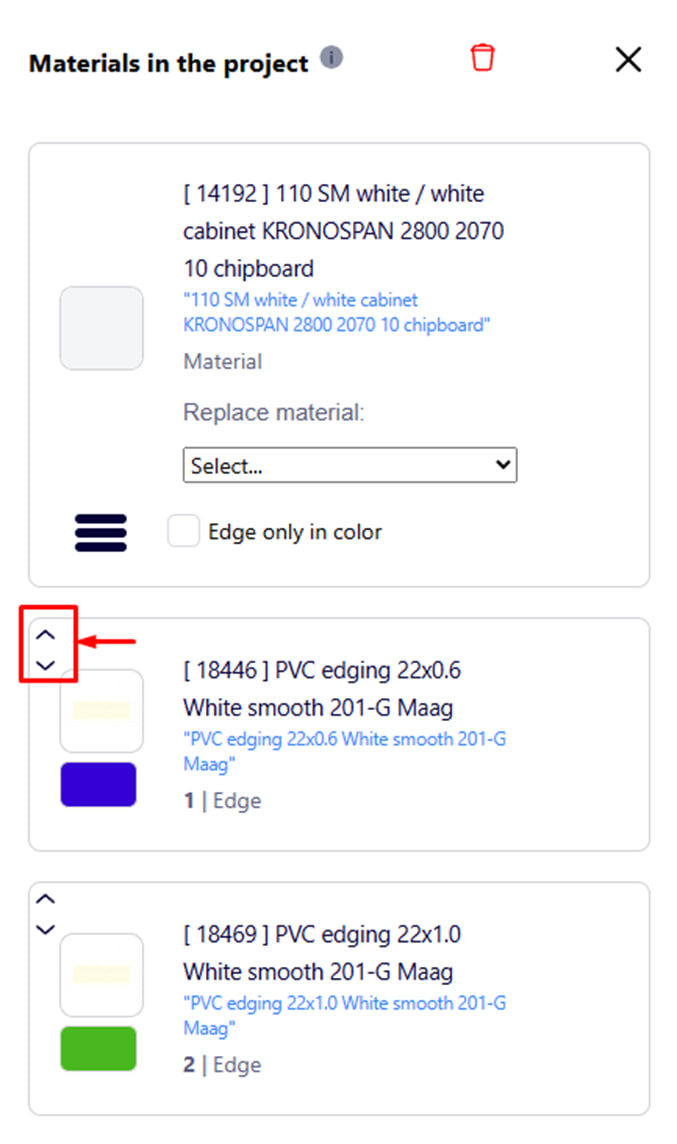
Changing the order of elements
To change the display order of materials in the project, use the arrows located to the left of each item in the list.
By clicking on the up or down arrows, you can move the material to the desired position.
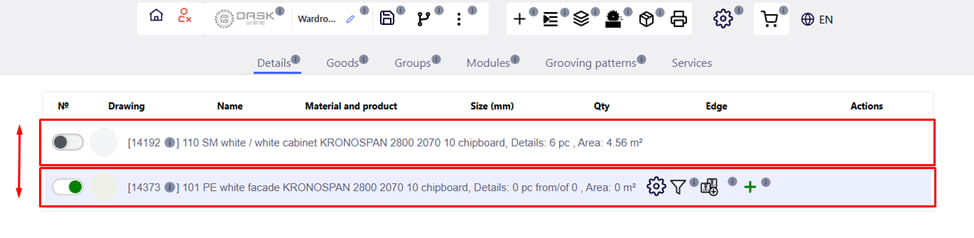
This allows you to organize the list on the main page of the project according to your priorities or work logic.
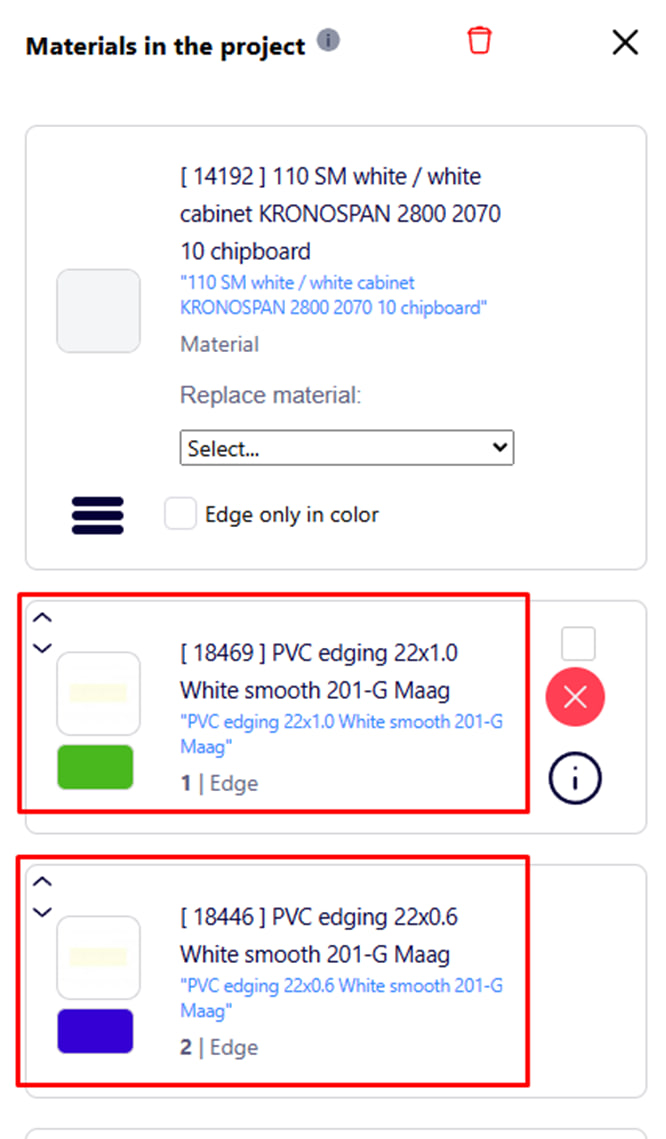
Up arrow - moves the element one position higher.
Down arrow - moves the element down one position.
Reordering is especially useful when priority is important for automatic assignment or for visually ordering a list.